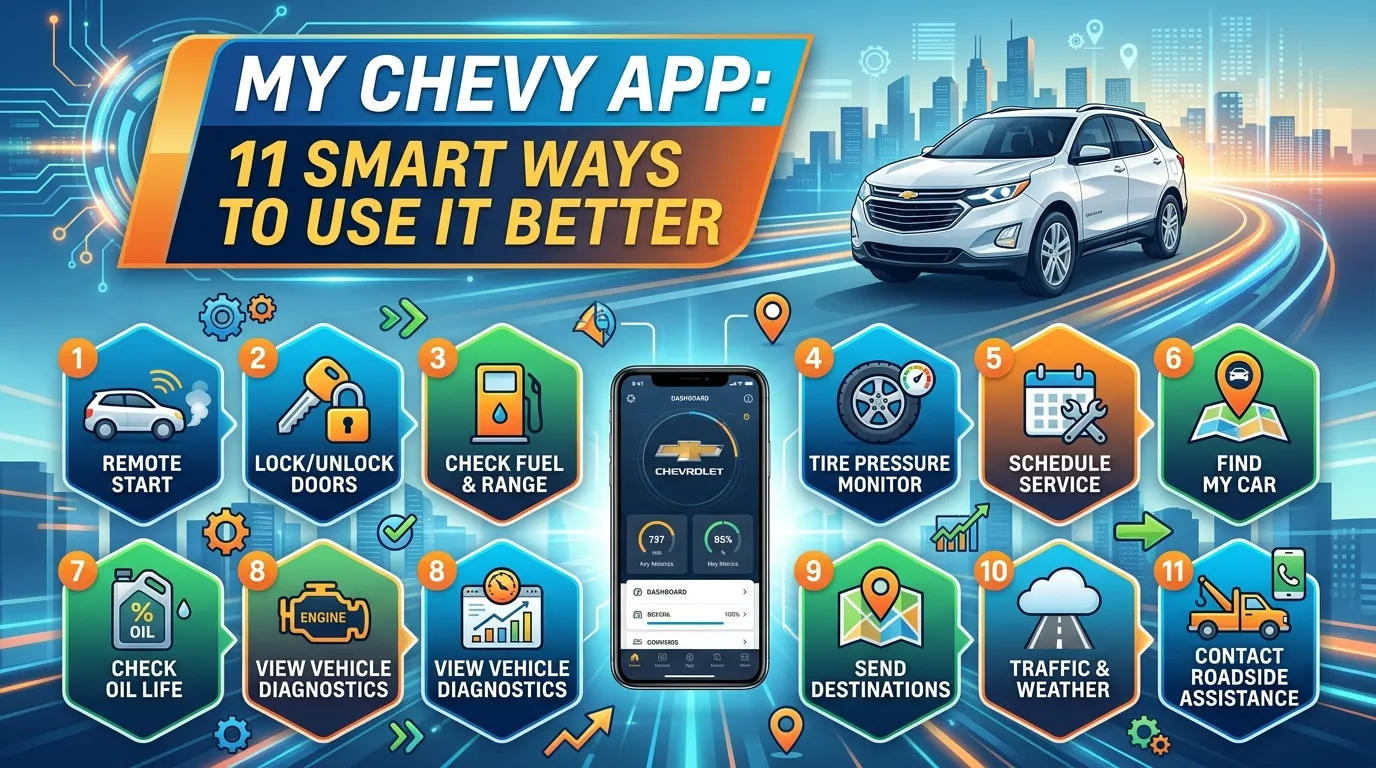
Ever walked away from your Chevy and wondered whether you locked the doors? The my chevy app can save you that stressful walk back. It puts useful vehicle tools on your phone, from remote commands to service reminders.
Still, the app can feel confusing at first. Features vary by vehicle, equipment, region, and connected services plan.
This guide covers setup, remote start, vehicle health, common fixes, and helpful EV tools.
In my experience, the app improves after a few small setup changes. Once your accounts and alerts are connected, daily tasks feel easier. Let’s walk through the basics without making things complicated.
What Is the My Chevy App?
The my chevy app is the common name for the official myChevrolet mobile app. Also, General Motors offers it for compatible Apple and Android phones. It connects your Chevy account, vehicle, and available OnStar connected services.
Think of it as a digital companion for your Chevy. You can check details and send supported remote commands from your phone.
For example, common features can include:
- Remote start or climate control
- Remote door locking and unlocking
- Horn and light controls
- Fuel level or battery charge status
- Tire pressure and oil life
- Vehicle location and walking directions
- Service scheduling and recall information
- Roadside Assistance access
- EV charging tools and route planning
However, not every Chevy supports every feature. Therefore, your screen depends on the model, model year, equipment, software, and service plan. For example, one owner may see climate controls. Another may only see a start button.
The my chevy app can also show several eligible GM vehicles on one account. That’s useful for households with more than one car.
Pro Tip: Use the same email address for your GM and OnStar accounts. This can prevent linking problems and missing features.
How to Set Up the My Chevy App Step by Step
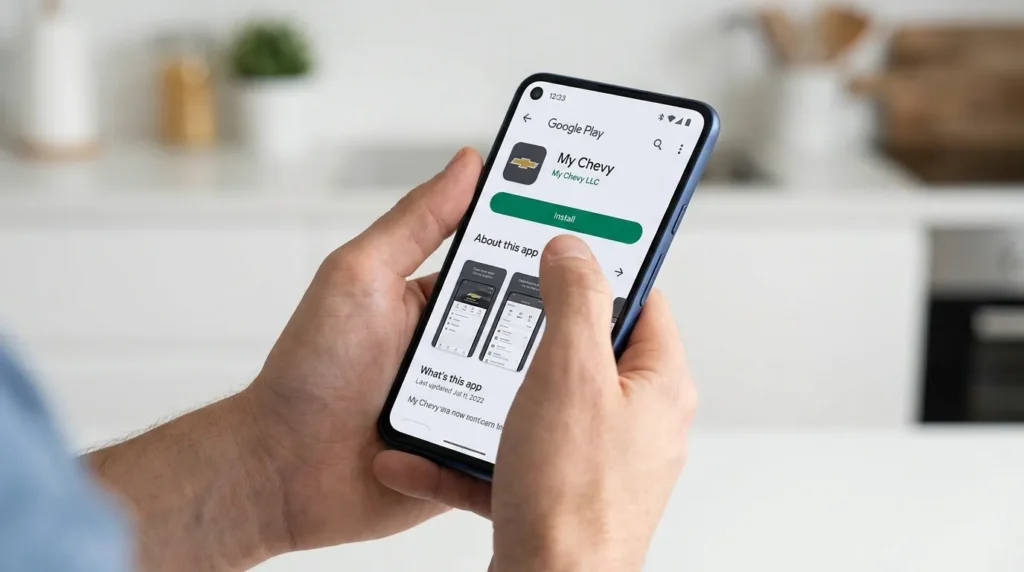
Good setup matters because many app problems start with an account mismatch. Fortunately, the process only takes a few minutes for many owners.
1. Download the official app
First, search for “myChevrolet” in the Apple App Store or Google Play. Check that General Motors Company publishes it. Also, install any available update before signing in.
2. Sign in with your GM account
Next, open the app and enter your GM account email and password. If needed, create an account inside the app.
Use the email connected to your purchase or OnStar enrollment. This helps the app find your vehicle.
3. Complete identity verification
My chevy app may ask for multi-factor authentication. Enter the one-time code sent by email or text. Don’t share that code with anyone.
4. Add or select your vehicle
Then, your Chevy may appear after you sign in. If it doesn’t, choose the option to add a vehicle. You may need the VIN from your registration or dashboard.
Confirm the linked account details. Follow the prompts if the app finds another email.
5. Check connected services
Some remote features need eligible connected services. Review your plan details in the vehicle settings. Link mismatched accounts, then sign in again.
6. Choose a preferred dealer
Next, select a nearby participating Chevrolet dealer. Then, my chevy app may help you schedule service and review maintenance needs.
7. Review notifications
Turn on alerts that match your needs. For example, enable service reminders, charging updates, or vehicle status notices.
Best My Chevy App Features for Everyday Driving
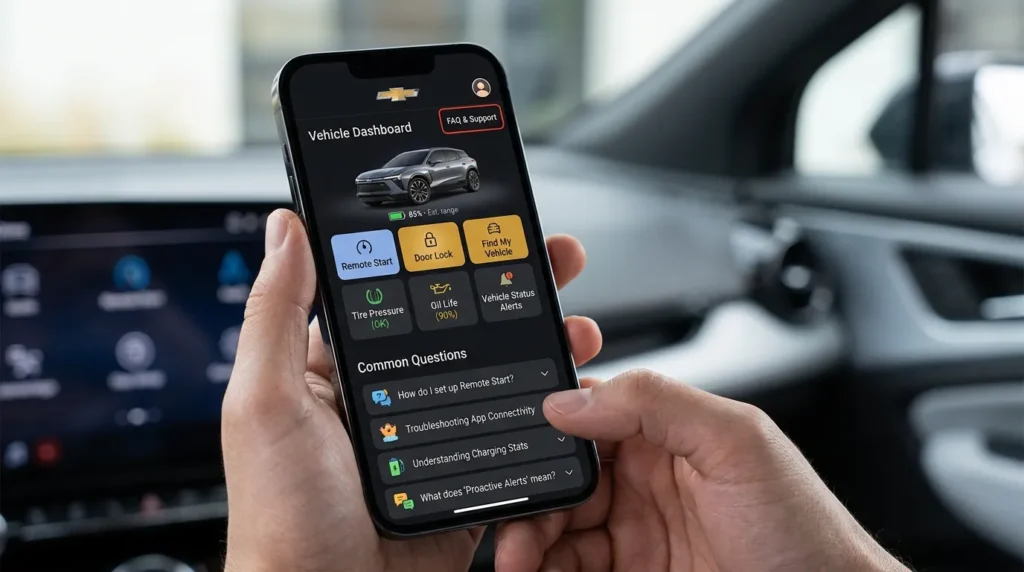
After setup, explore the home screen. Key controls sit near the top or inside the “Controls” menu.
| Feature | What it does | When it helps |
| Remote start | Starts an eligible vehicle remotely | Cold mornings or hot afternoons |
| Door controls | Locks or unlocks supported doors | When you forgot the key fob |
| Vehicle status | Shows fuel, charge, oil life, and tire data | Before a trip |
| Vehicle locate | Displays the vehicle on a map | Large parking areas |
| Service tools | Helps schedule maintenance | When an alert appears |
| EV tools | Shows charging details and station options | Daily charging and road trips |
Remote start and climate controls
Chevrolet remote start is a major reason owners download the app. Tap the Start or Climate control from the home screen. Some supported vehicles also offer cabin temperature settings.
Both the phone and vehicle need a working connection. Check the screen for confirmation after each command.
Lock, unlock, horn, and lights
Ever reached work and questioned whether the doors were locked? Open the remote key fob controls and tap Lock. You can also unlock supported vehicles.
In addition, some models allow horn, alarm, or flashing light commands. These tools can help you find your Chevy in a crowded lot.
Vehicle status and service
Vehicle status can show fuel, EV charge, tire pressure, oil life, and odometer details.
Treat the app as a reference. Check the vehicle when a reading seems unusual.
The my chevy app may help you schedule service with a preferred dealer. Available appointment tools depend on dealer participation.
Maps and vehicle location
The map can show your vehicle’s last available location and walking directions. This helps in large parking areas.
Some vehicles let you send a destination to built-in navigation. Therefore, you can plan a trip before getting inside.
Family sharing
Also, Family Sharing gives invited users access through their own accounts. Shared benefits may include remote commands. Review each invitation, and remove access when it’s no longer needed.
EV charging features
For compatible electric Chevrolets, my chevy app can show battery status and charging progress. It may also offer plug-in reminders, route planning, and charging station tools.
However, some EV features depend on location, account setup, and participating networks. Therefore, check charger details before starting a session.
A Simple Daily Routine for the My Chevy App
You don’t need to open every menu each day. Instead, use the my chevy app when it can save time.
- Before leaving: Check fuel, battery range, and tire pressure.
- During extreme weather: Start available climate controls before departure.
- After parking: Use Lock when you’re unsure about the doors.
- Before a trip: Review oil life, charging plans, and service alerts.
- At a large venue: Check the vehicle location.
- When an alert appears: Read the details before booking service.
Test important features while parked at home. Then, you’ll know what works before you truly need it.
Common My Chevy App Problems and Quick Fixes
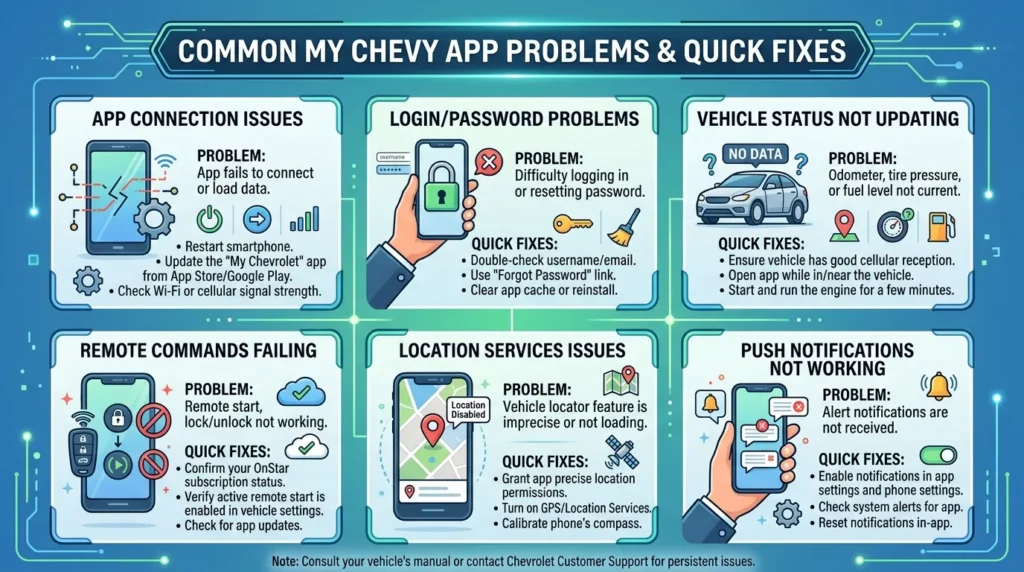
My chevy app relies on several systems. Therefore, one small issue can interrupt a command.
Remote start won’t work
First, make sure the vehicle is off. Then, check that the hood, trunk, doors, and fuel door are closed. Turn off the hazard lights.
Remove the key fob, stand at least 10 feet away, and check both connections.
If the command fails, open Command History. Look for an error symbol and follow the suggested action.
The vehicle doesn’t appear
Check that you selected the correct vehicle. If it’s missing, add it using the matching dealer or OnStar details.
A different email often causes this problem. Compare your GM and OnStar email addresses.
Controls are missing
Missing controls may relate to vehicle equipment or plan access. Open the plan details and confirm that remote commands are included.
Also, update the my chevy app, sign out, restart your phone, and sign back in.
Vehicle status looks old
Refresh the status and check the “last updated” time when shown. If the reading still looks wrong, verify it inside the vehicle.
Don’t ignore a warning light because the app shows older data.
The app feels slow
Reopen myChevrolet, switch between Wi-Fi and mobile data, then restart your phone if needed.
Mistakes to Avoid When Using the My Chevy App
The app is convenient, but good habits matter. Avoid these common mistakes:
- Assuming every feature is free: Some tools require eligible connected services.
- Using the wrong email: This can hide your vehicle or plan.
- Ignoring app updates: Older versions may behave poorly.
- Sharing your password or code: Protect access to remote controls.
- Trusting stale data: Check the update time before acting.
- Forgetting shared access: Remove users who no longer need control.
- Using remote start unsafely: Follow local rules and your owner’s manual.
Never use remote start in a closed garage. Exhaust gases can build up quickly.
The my chevy app doesn’t replace safe driving or regular checks. You still need to inspect tires, watch warning lights, and maintain your vehicle.
My Chevy App FAQ
Is my chevy app free?
You can download the app without paying. However, some features need a compatible vehicle and eligible service plan. Included access may also vary by model year.
Open the plan section to see your exact services.
Can I use my chevy app without OnStar?
You may still access some owner resources or account tools. However, many connected features use OnStar services. Remote commands and live vehicle data may require active access.
Check your plan details inside the app for the most accurate answer.
Why doesn’t the remote start showing?
Your Chevy may not support remote start, or the required service may be inactive. The app may also be linked to the wrong vehicle.
First, confirm the selected vehicle. Then, review plan details, update the app, and check your account email.
Can the app find my parked vehicle?
For example, supported vehicles can appear on the app’s map. The map may also offer walking directions to the last available location.
However, location accuracy depends on the connection. Contact local authorities if you believe your vehicle was stolen.
Does my chevy app work with electric vehicles?
Yes, compatible Chevrolet EVs can use available app tools. These may include battery status, charging progress, route planning, and charger search.
However, features vary by vehicle, region, software, and network. Check charger details before a long trip.
Can two people use the same Chevy?
Eligible accounts can use Family Sharing. Each invited person uses a separate mobile app account. Shared tools may include remote commands.
Therefore, only invite people you trust. Also, review access after a sale, move, breakup, or driver change.
Is my chevy app safe?
Use a unique password and protect the email linked to your account.
Never share a one-time code. Also, remove access from phones you no longer use.
Get More Value From the My Chevy App
The my chevy app can make everyday Chevy ownership simpler. It helps you check vehicle status, use available remote commands, plan charging, and schedule service.
Start by linking the correct GM and OnStar accounts. Then, review your plan and test the main controls at home. Also, turn on only the alerts that truly help you.
Remember that features vary by vehicle and service plan. Therefore, use your owner’s manual and official Chevrolet support for exact details. Update myChevrolet today, finish the setup, and explore one useful feature at a time.