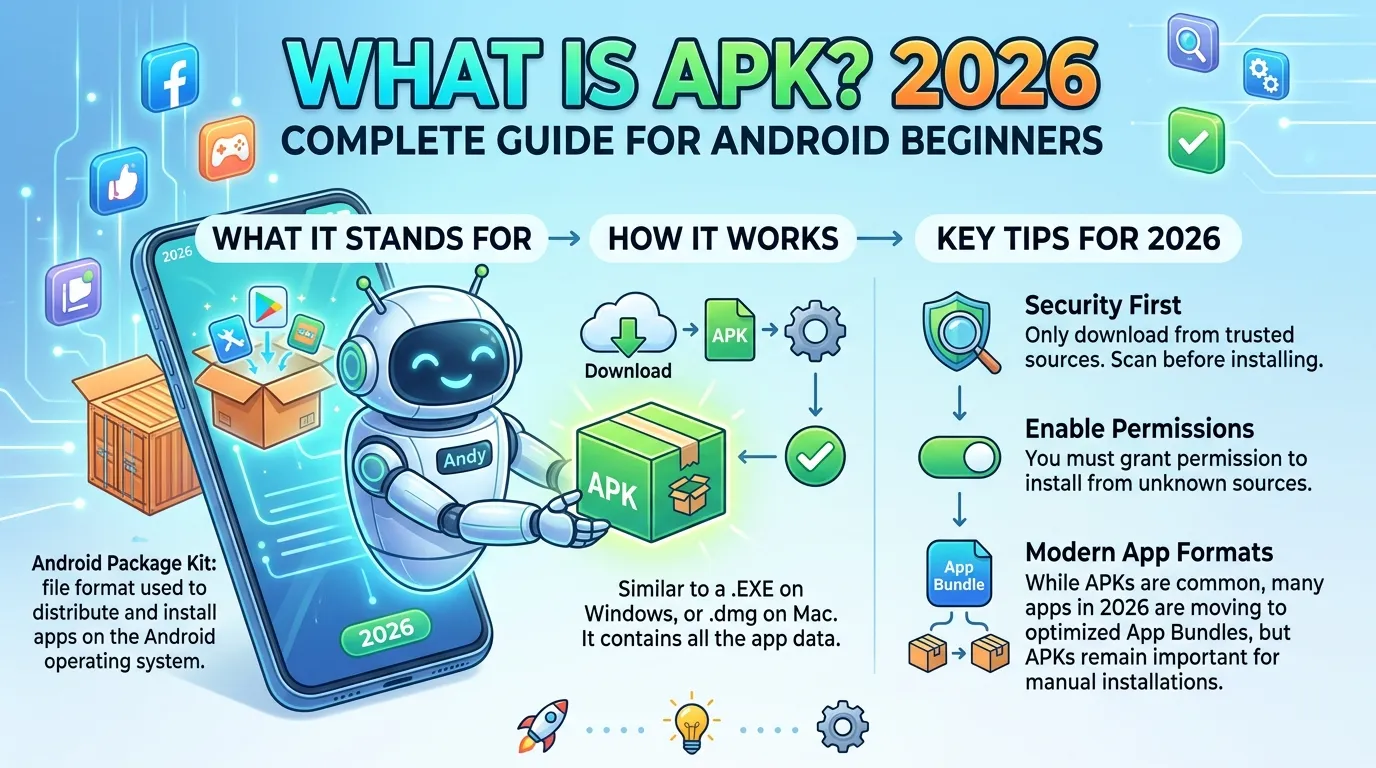
Have you ever seen the letters “APK” mentioned when someone talks about downloading an Android app and wondered what it actually means? You’re not alone. Millions of Android users encounter this term every week without really understanding what it refers to or why it matters. Understanding what APK is takes about five minutes and immediately makes you a smarter, safer Android user.
Here’s a quick answer before we go deeper: APK stands for Android Package Kit. It’s the file format that Android uses to install apps every single one, whether you download it from the Google Play Store or anywhere else.
In this complete guide, you’ll learn exactly what an APK file is and how it works, what’s inside one, why people download APK files directly, when that’s safe versus risky, how to install one correctly, and what to watch out for to keep your device protected. Whether you’re completely new to Android or just want a clearer picture of how the system works, this guide explains everything clearly and honestly.
Let’s get into it.
What Is APK The Simple Explanation
Let’s start with the basics. What is APK? APK stands for Android Package Kit. It’s the file format that Android uses to package and distribute applications similar to how Windows uses .exe files to install software, or how macOS uses .dmg files.
Every app you install on an Android phone arrives as an APK file. When you tap “Install” on the Google Play Store, Android downloads and runs an APK behind the scenes. You don’t see the file because the Play Store manages the entire process automatically. However, APK files also exist as standalone files that you can download and install manually which is where the term “APK download” comes from.
The Simple Analogy
Think of an APK file like a box that contains everything a store needs to set itself up inside your phone. The box holds the product (the app’s code), the instructions for how to set it up (configuration files), and all the decorations and displays (images and visual resources).
When you install an app, Android opens that box, reads the instructions, and sets everything up on your device. Once installation finishes, Android discards the box you only keep what’s inside (the installed app). The APK file itself is no longer needed after installation.
The File Extension
APK files always end with the .apk extension just like Word documents end with .doc or .docx, and PDF files end with .pdf. If someone sends you a file called “facebook.apk” or “game.apk,” that’s an Android installation package. The extension tells your phone exactly how to handle the file.
In my experience, once people understand that an APK is simply an installation file, nothing mysterious, the entire concept becomes much less intimidating. It’s the same category of file as a Windows installer, just for Android.
Practical Tip: If you’re ever unsure whether a file is an APK, look at its extension at the end of the filename. The .apk extension confirms it’s an Android installation file. If the extension says .apk but something about it feels off like it came from an unexpected source treat it with caution before opening.
What’s Actually Inside an APK File?
Now that you know what APK is in simple terms, let’s look at what’s actually inside one. APK files are archive files similar to ZIP files that contain several different components Android needs to install and run an application.
The Main Components
classes.dex This is the compiled application code. It contains the actual programming logic that makes the app function. When you tap a button in an app, the code in classes.dex determines what happens next.
AndroidManifest.xml This is the app’s instruction sheet. It tells Android the app’s name, what Android version it requires, which permissions it needs (camera, microphone, storage, etc.), and what activities and services it contains.
res/ folder This folder holds all the visual resources images, icons, layout files, color definitions, and string translations. Everything you see on screen comes from the res/ folder.
assets/ folder Additional files the app needs fonts, audio files, configuration data, and any other resources that don’t fit neatly into the standard resource categories.
META-INF/ folder This is the security folder. It contains the digital signature that certifies the app came from its stated developer. Android checks this signature during installation. If the signature is missing or doesn’t match, Android refuses to install the app.
lib/ folder Native code libraries for different processor types. This allows apps to work across different Android hardware without needing separate versions for each chip.
Why the Signature Matters
The META-INF signature is perhaps the most important component for safety. Every legitimate APK is signed with a unique digital certificate from its developer. Google, Meta, Spotify they all sign their APKs with their own certificates before publishing.
When you modify an APK to unlock premium features, remove ads, or add anything the original signature becomes invalid. The modified APK must be re-signed with a different certificate. This is one of the clearest technical indicators that an APK has been altered from its original form.
Practical Tip: You can check an APK’s signature using free tools like Analyzer (available in Android Studio) or online APK analysis websites. Comparing the certificate fingerprint of a downloaded APK against the Play Store version confirms whether the file is genuine and unmodified.
How Does Android Use APK Files?
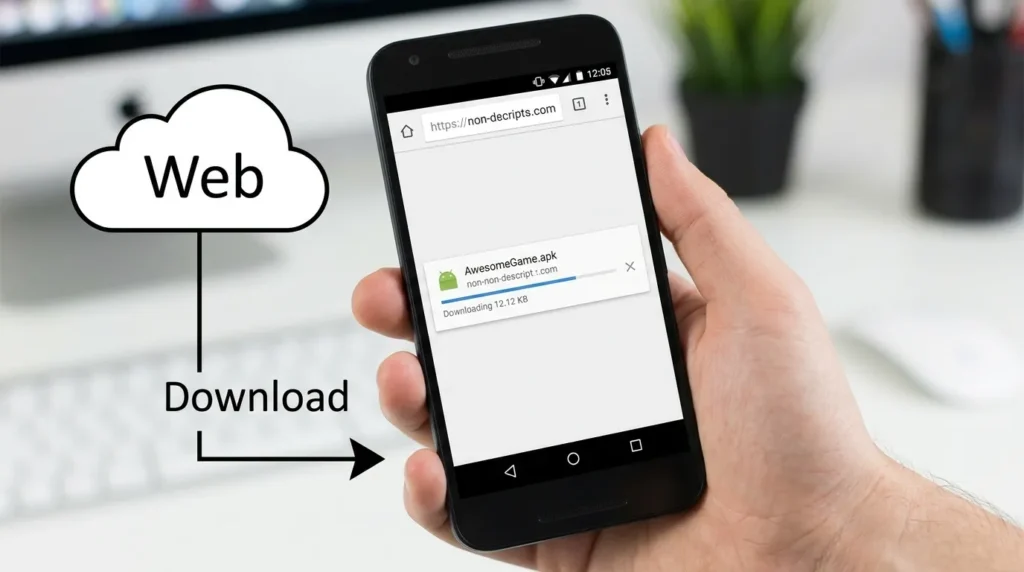
Understanding what APK is also means understanding the installation process and how Android actually handles these files when you install an app.
The Installation Process Step by Step
When you install an app from the Google Play Store, here’s what happens behind the scenes:
- The Play Store downloads the APK file to a temporary location on your device
- Android’s package manager reads the AndroidManifest.xml to understand what the app needs
- Android checks the digital signature in META-INF to verify the app’s authenticity
- The permission screen appears Android shows you what the app requests access to
- You confirm the installation and Android extracts the app files to your device
- The APK file gets deleted it’s no longer needed once the app is installed
- The app icon appears on your home screen or app drawer
This entire process takes seconds for most apps. The Play Store automates steps one through six completely; you only participate at step four (reviewing permissions) and five (confirming).
When You Install an APK Manually
When you install an APK file manually from a file you downloaded yourself the process is the same except that you initiate it by opening the file yourself rather than going through the Play Store. Android still checks the signature, still shows you the permissions, and still handles the installation the same way.
The key difference is that Google Play Protect doesn’t pre-screen manually installed APKs the way it screens Play Store apps. This is why the source of an APK matters so much you lose one important layer of automated security checking.
Practical Tip: After any app installation from the Play Store, you can find the installed app’s details by going to Settings → Apps → [App Name]. The “App info” screen shows the package name, version, install date, and permissions useful for verifying you installed the genuine app rather than a lookalike.
Why Do People Download APK Files Directly?
Understanding what APK fully means understanding why people sometimes choose to download APK files directly rather than using the Play Store. There are several legitimate reasons and some problematic ones.
Legitimate Reasons for Direct APK Downloads
Regional Play Store restrictions Some apps are unavailable in certain countries due to licensing agreements, government regulations, or developer decisions. An app that appears normally in the UK Play Store might be absent from the Pakistan or India Play Store. Users in restricted regions sometimes download APKs directly from official developer websites to access apps their regional store doesn’t carry.
Devices without Google Play Services Some Android devices particularly certain Huawei models and custom Android builds don’t include Google Play Services or the Play Store at all. Users of these devices have no access to Play Store apps and must install everything via APK from external sources.
Testing older app versions Developers occasionally release updates that introduce bugs or remove features. Some users want to revert to a previous version. Legal archive sites like APKMirror host previous versions for this purpose.
Beta testing App developers sometimes distribute beta versions of their apps as APK files to testers before pushing updates to the Play Store. This is a completely legitimate use case.
Problematic Reasons What to Avoid
Accessing paid apps for free Some sites offer “cracked” APKs of paid apps, claiming to unlock premium features without payment. These modified files violate copyright law and almost always contain malware.
“Modded” game APKs Sites offering unlimited coins, unlimited lives, or unlocked levels in games distribute modified APKs that violate the game developer’s terms of service. They frequently contain hidden harmful code.
Bypassing security features Some users download APKs from outside the Play Store specifically to install apps that Google has removed for policy violations. Apps removed for safety reasons shouldn’t be installed regardless of whether APK files circulate.
Practical Tip: The single most important rule for APK downloads: only download directly from the official developer’s website not from third-party hosting sites. If a developer doesn’t offer a direct APK download, the Play Store version is your only safe option.
Is Downloading an APK Safe? What You Need to Know
Now that you understand what APK is and why people download them, the most practical question is whether it’s safe to do so. The honest answer: it depends entirely on the source.
When APK Downloads Are Safe
From the official developer’s website: Companies like Proton VPN, Windscribe, and Mullvad publish their official APK files directly on their websites alongside Play Store listings. These files are signed with the same developer certificates as the Play Store versions and are completely safe.
From F-Droid: F-Droid is a curated repository of free and open-source Android apps. Every app on F-Droid has its source code publicly available and is built directly from that code. It’s a genuinely trustworthy alternative app source for open-source software.
From APKMirror: APKMirror is one of the few third-party APK sites with a reputation for safety. It only hosts apps originally published on the Play Store and verifies signatures against the originals. It does not accept modified or cracked APKs.
When APK Downloads Are Risky
From generic hosting sites: Websites that host thousands of APK files from unknown sources, especially those that appear when you search for “free download APK” frequently distribute modified versions containing malware.
From messaging apps: APK files shared through WhatsApp groups, Telegram channels, or other messaging platforms should never be installed. There’s no way to verify their authenticity or origin.
Modified or “modded” APKs: Any APK claiming to unlock paid features, remove ads, or provide unlimited in-game resources has been altered from its original form. The modification process opens the door for malicious additions.
How to Verify an APK Before Installing
These checks take minutes and significantly reduce risk:
- VirusTotal scan Upload the file at virustotal.com. Over 70 antivirus engines scan it simultaneously. Zero or one detections suggest safety; three or more indicate a problem.
- SHA-256 hash check Compare the file’s hash against the one published on the official developer’s website. An exact match confirms the file is unmodified.
- File size comparison Modified APKs are often larger than originals. Compare your file’s size against the official listing.
Practical Tip: Bookmark virustotal.com on your Android browser right now. The next time anyone sends you an APK file or you consider downloading one from outside the Play Store, a thirty-second VirusTotal scan provides meaningful reassurance or a clear warning to stop.
How to Install an APK File on Android Step by Step
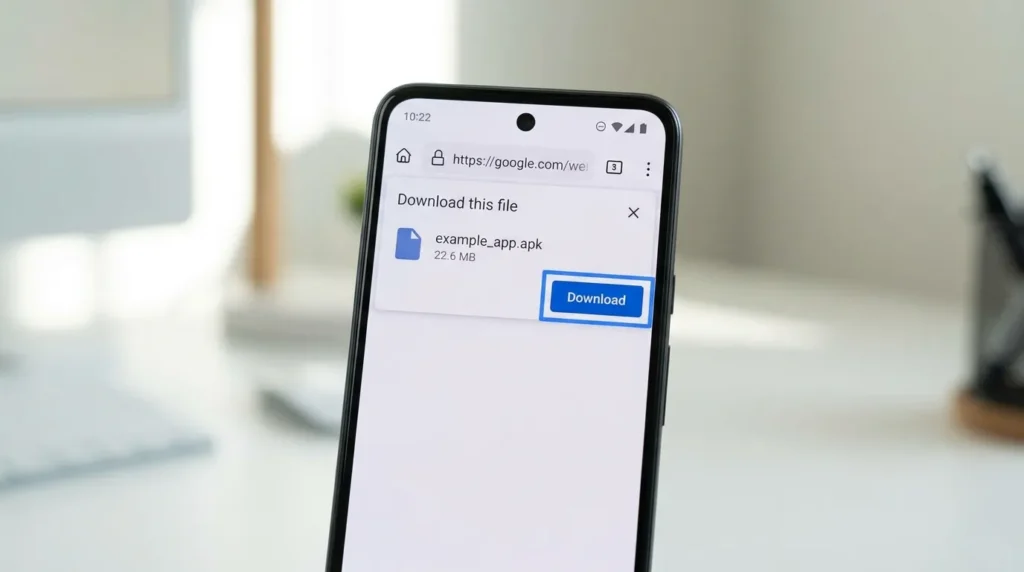
Now that you know what APK is and when downloading one makes sense, here’s exactly how to install one safely when the situation calls for it.
Before You Start Enable Unknown Sources Correctly
Android blocks APK installations from outside the Play Store by default. To install a manually downloaded APK, you need to grant permission but do it carefully.
On Android 8.0 and above (recommended method):
- Download your APK file through Chrome
- When you tap the file to install it, Android shows a permission prompt
- Tap Settings in the prompt
- Toggle “Allow from this source” ON for Chrome specifically
- Return and proceed with installation
- Immediately go back and toggle it OFF after installation completes
This approach limits the permission to Chrome only, not your entire phone.
On Android 7 and below:
- Go to Settings → Security
- Toggle Unknown Sources ON
- Install your APK
- Return to Settings → Security and toggle Unknown Sources OFF immediately
The Complete Installation Process
- Confirm you’ve downloaded from a safe, verified source
- Scan the file with VirusTotal before proceeding
- Enable the unknown sources permission as described above
- Open your Downloads folder and tap the APK file
- Review the permissions screen carefully
- Tap Install and wait for completion
- Disable unknown sources permission immediately
- Open the app and verify it functions as expected
The entire process takes three to five minutes. Skipping the verification and permission-management steps is where most problems occur.
Practical Tip: After disabling unknown sources, run a Google Play Protect scan. Go to Play Store → tap your profile icon → Play Protect → Scan. This scans all installed apps including sideloaded ones and flags anything suspicious giving you final confirmation that your device remains clean after the installation.
APK Sources Safe vs Risky Comparison Table
| Source | Safety Level | App Type | Signature Verified | Auto-Updates | Best For |
| Google Play Store | ✅ Highest | All app types | ✅ Yes | ✅ Automatic | All standard downloads |
| Official developer website | ✅ Very High | Developer’s own apps | ✅ Yes (same cert) | ❌ Manual | Apps restricted regionally |
| F-Droid | ✅ High | Open-source only | ✅ Built from source | ✅ Via F-Droid | Privacy-focused open-source |
| APKMirror | ⚠️ Use carefully | Play Store mirrors | ✅ Verified against Play Store | ❌ Manual | Older app versions |
| Generic APK sites | ❌ Dangerous | Everything + mods | ❌ Unverified | ❌ Manual | Avoid completely |
| Messaging app shares | ❌ Dangerous | Unknown origin | ❌ Unverified | ❌ None | Never install |
Frequently Asked Questions
What is APK in simple terms for a complete beginner?
An APK Android Package Kit is the installation file format that Android uses for apps. Think of it like a ZIP file that contains everything Android needs to install an application on your device. Every app you install from the Google Play Store arrives as an file; the Play Store just handles the download and installation automatically without you seeing the file itself.
Is it safe to install APK files on my Android phone?
It depends entirely on where the APK comes from. apks from the Google Play Store are safe Google scans them for malware before publication. APKs from official developer websites are equally safe. APKs from unknown third-party sites, messaging apps, or modified (“modded”) versions carry significant risk of malware, account theft, or device compromise. Always verify the source before installing any manually.
What is the difference between an APK and an app on the Play Store?
There’s no technical difference: every Play Store app is delivered as an APK file. The distinction is in how it reaches your device and the safety checks applied. Play Store apps go through Google’s security review and are verified before installation. Manually downloaded APKs bypass this process, making your own source verification and VirusTotal scanning essential steps.
Can an APK file give my phone a virus?
Yes a malicious APK can install harmful software including spyware, adware, banking trojans, and ransomware. However, this risk only exists with APKs from untrusted sources. APKs from the Play Store and official developer websites carry essentially no malware risk. The risk is entirely about the source, not the APK format itself.
What happens if I install a modified or cracked APK?
Installing a modified risks exposing your device to malware, having your account credentials stolen, and getting your app account permanently banned. Modified APKs including those claiming to unlock premium features or provide unlimited in-game resources violate developers’ terms of service. Additionally, they often contain hidden code that runs in the background without your knowledge. No legitimate benefit justifies these risks.
Conclusion
Understanding what is APK is genuinely useful knowledge for every Android user in 2026. APK files aren’t mysterious or scary; they’re simply the standard installation format that Android has used since its beginning. The Play Store uses them for every app you install, invisibly and automatically.
To recap the three most important takeaways: an APK is an Android installation file containing everything needed to set up an app on your device; the Google Play Store is always the safest source; and if you ever need to install an APK manually, verify the source, scan with VirusTotal, and disable unknown sources immediately after installation.
Bookmark this guide and share it with anyone who asks you “what is?” it’s a question worth answering well, because understanding the answer makes every Android user safer and more confident.
What other Android terms or concepts would you like explained just as clearly? Drop your question in the comments below your suggestion might become our next guide.
Disclaimer
This article is written for informational and educational purposes only. The Google Play Store remains the recommended and safest source for all Android applications. Information about alternative APK sources is provided for educational awareness only and does not constitute an endorsement of third-party APK sites. We do not promote, endorse, or link to modified, cracked, pirated, or premium-unlocked APK files of any kind. Always verify APK files before installation using the methods described in this article. The author accepts no responsibility for any device issues, data loss, or security incidents arising from APK installations made outside the official Google Play Store. Please ensure all app downloads comply with applicable laws in your country or region.