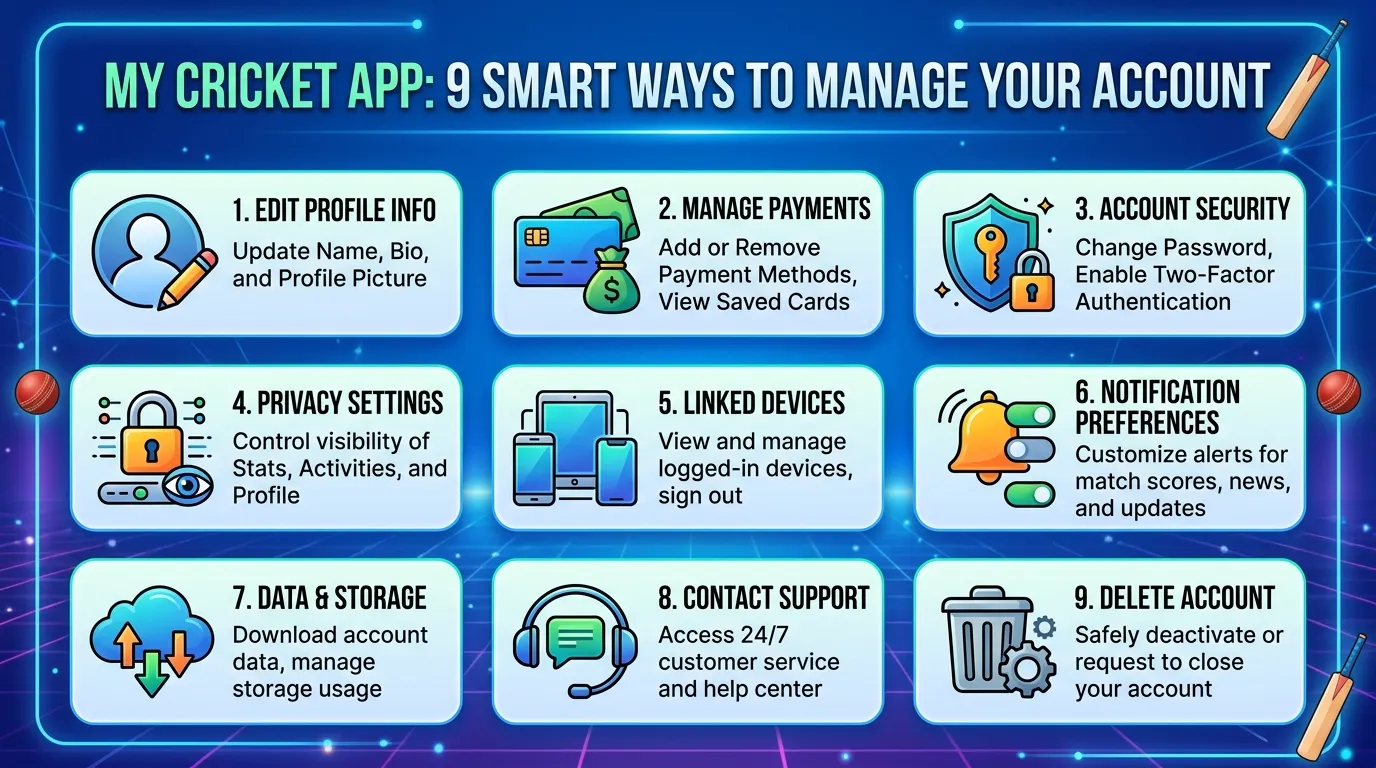
Managing a phone account should not feel like a weekly chore. Yet bills, data, plan changes, and payment dates can pile up fast.
That is where my cricket app can help. Cricket Wireless styles its name as the myCricket App. Also, it puts many common account tasks in one place. For example, you can check usage, make payments, review bills, and manage plan features from your phone. ll, an app only saves time when you know where to look. For example, you may not be able to sign in. Perhaps you are unsure how Auto Pay works. Or you may want to check one line on a family account.
This guide explains the basics without confusing tech talk. First, you will learn how to set up the app and use its best tools. You will also find quick fixes for common problems.
What Is the My Cricket App?
The my cricket app is Cricket Wireless’s mobile account management tool. It is available for supported Apple and Android devices. Also, the official listings describe it as a free way to manage your account from almost anywhere. nk of it as a pocket control panel for your wireless service. Instead of visiting a store, you can handle many routine jobs at home.
For example, you can use the app to:
- View your amount due and payment date
- Pay your Cricket bill
- Check data usage for one or more lines
- Review billing history
- Change your wireless plan
- Add or remove eligible features
- Manage Auto Pay
- Add a new line
Cricket says customers aged 18 or older can manage accounts through the app. Therefore, younger users may need help from the account owner. Who should use it?
Therefore, the my cricket app suits people who want quick account access. It is especially helpful when you:
- Prefer paying bills from your phone
- Share an account with family
- Need to watch monthly data use
- Change plan features sometimes
- Want fewer store visits
- Keep payment records for budgeting
Pro Tip: Open the app before your due date. As a result, you have time to fix payment or sign-in problems.
How to Set Up the My Cricket App in 7 Steps
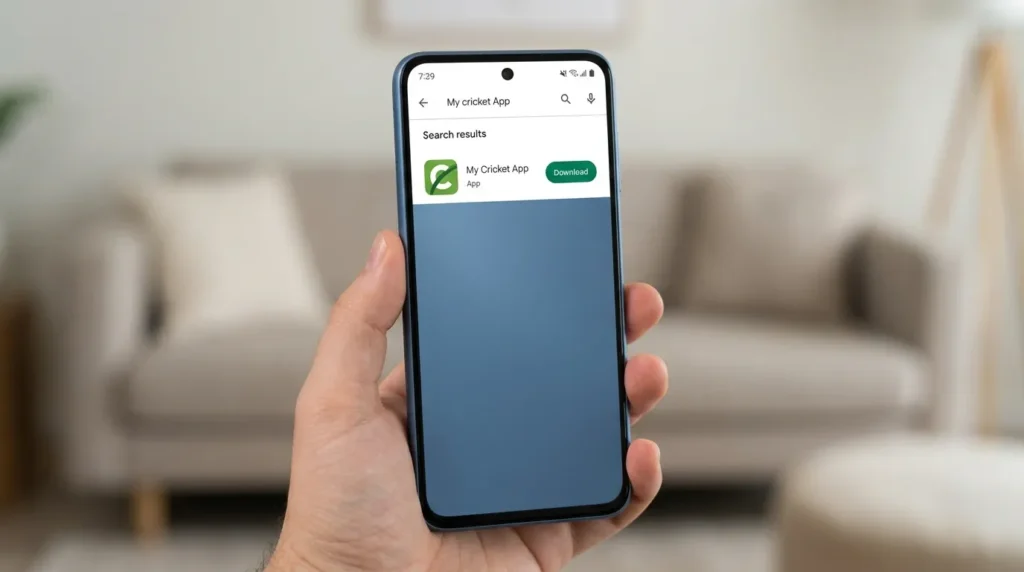
Getting started takes only a few minutes in most cases. First, keep your Cricket phone number nearby.
Follow these steps:
- Open your phone’s app store.
First, use the Apple App Store or Google Play Store. Then, search for the official myCricket App. - Check the developer name.
However, avoid look-alike apps. The official listing should identify Cricket Wireless as the provider. Install the app.
Tap the download button. Then wait for the installation to finish. - Open the app.
Find the myCricket icon on your home screen. Then, tap it once. - Sign in or create an account.
For example, new users can register with a Cricket phone number. Cricket sends a temporary code during setup. Review your account home screen.
Then, check the amount due, due date, plan, and lines. This confirms that you opened the correct account. - Turn on useful notifications.
Payment reminders can prevent missed dates. However, hide private account details on your locked screen.
How to pay your bill
My cricket app offers several payment choices. First, open the app, sign in, and select the payment option. Then enter the amount and review the details.
Cricket supports credit cards, debit cards, and eligible digital wallets. For example, these may include Apple Pay, Google Pay, or Samsung Pay on supported devices. ore you submit, check:
- The payment amount
- The selected payment method
- The account information
How to check data usage
Sign in and tap Usage. Then, choose the line you want to review on a multi-line account. Cricket lists this as the standard app path. 9 Smart Ways to Use the My Cricket App
My cricket app does more than show your bill. Used well, it can become a simple monthly routine.
1. Check your due date early
Open the app several days before payment is due. Therefore, you have time to replace an expired card. It also prevents rushed payments.
2. Review every line
Family plans can hide small usage changes. Therefore, check each line instead of viewing only the account total.
3. Use Auto Pay carefully
Auto Pay can reduce missed payments. However, you should still review the payment method before each billing cycle.
Also, Cricket lets customers manage Auto Pay in the app. Its official guide also explains how to turn the feature off. 4. Save payment proof
Take a screenshot of the confirmation screen. You can also keep the receipt email in a billing folder.
However, never post that screenshot online. It may contain private payment details.
5. Review billing history
Billing history helps you understand past payments and charges. Open the payments area and choose the billing history option. 6. Manage plan features
Your needs can change during travel, school, or work. Therefore, review extra features before adding them.
Cricket says eligible features can be added, changed, or removed through the app. Also, some one-time features end with the billing cycle. 7. Add a line when needed
You can start adding a line from the app home screen. The app may send you to a shopping page. 8. Protect your login
Use a strong password that you do not reuse elsewhere. In addition, never share a one-time code with an unexpected caller.
Also, sign out on shared devices. Also remove saved payment details before selling an old phone.
9. Update the app
Old versions may load slowly or miss important fixes. Therefore, check your app store for updates.
My Cricket App Features Compared
This table shows which tool may work best for common tasks.
| Task | My Cricket App | Cricket Website | Quick Pay |
| View account balance | Yes | Yes | Limited |
| Pay a bill | Yes | Yes | Yes |
| Check data usage | Yes | Yes | No |
| Review billing history | Yes | Yes | No |
| Change plan features | Yes | Yes | No |
| Use without signing in | No | No | Yes |
| Manage several lines | Yes | Yes | Payment only |
Quick Pay lets someone make a secure payment without signing into the full account. However, it does not save payment information. Payments also apply to the overall account, not one specific line. Therefore, use my cricket app for regular account management. However, use the website when you prefer a larger screen. Meanwhile, Quick Pay works for a fast one-time payment.
In my experience, the app is easiest for quick account checks.
Common My Cricket App Mistakes to Avoid
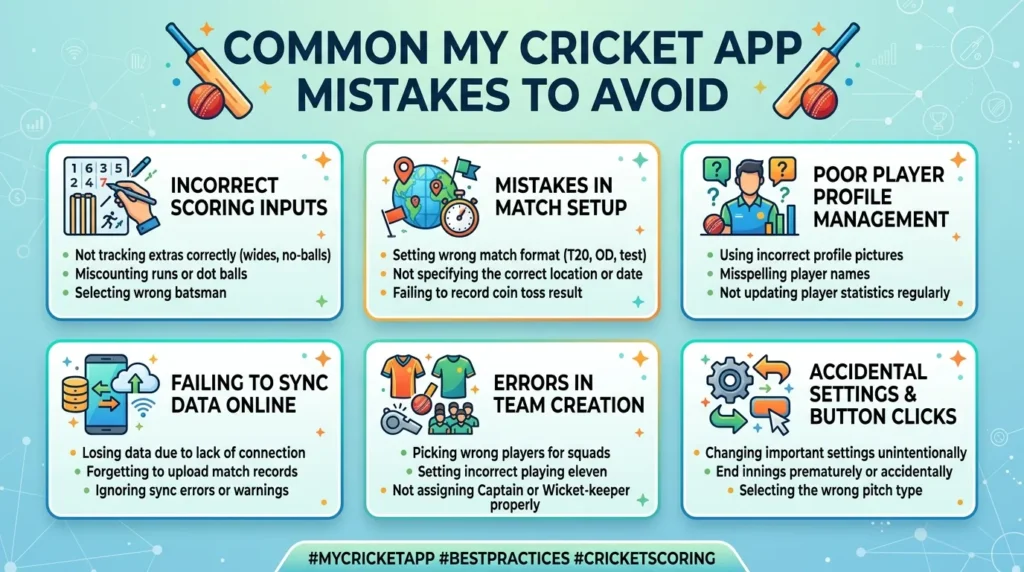
Small mistakes can cause big frustration. Fortunately, most are easy to prevent.
Downloading the wrong app
Search results may show similar names. Therefore, confirm the developer before installing anything.
Do not download an app from a random text link. Instead, use your phone’s official app store.
Repeating an old password
Too many failed sign-in attempts can slow you down. Therefore, use the official reset process when your password fails.
Waiting until the final minute
A failed card or poor connection can delay payment. Therefore, do not wait until late on the due date.
Ignoring app updates
My cricket app may act strangely when it is outdated. First, install any available update. Then restart your phone.
Assuming payments target one line
On shared accounts, payments generally go toward the full balance. They do not target one specific line. refore, family members should agree on payment shares. Also, keep a simple note or shared record.
Sharing account codes
A one-time code can unlock private account access. Never send it to a stranger.
My Cricket App Troubleshooting Checklist
Is the app frozen, blank, or refusing your login? Try these fixes in order:
- Confirm that mobile data or Wi-Fi works.
- Close the app fully.
- Open it again.
- Check for an app update.
- Restart your phone.
- Re-enter your login details.
- Reset your password officially.
- Clear the cache on Android.
- Reinstall the official app.
- Try the Cricket website.
Do not keep submitting the same payment. First, check your bank activity and billing history. Otherwise, you may create a duplicate payment.
My Cricket App FAQ
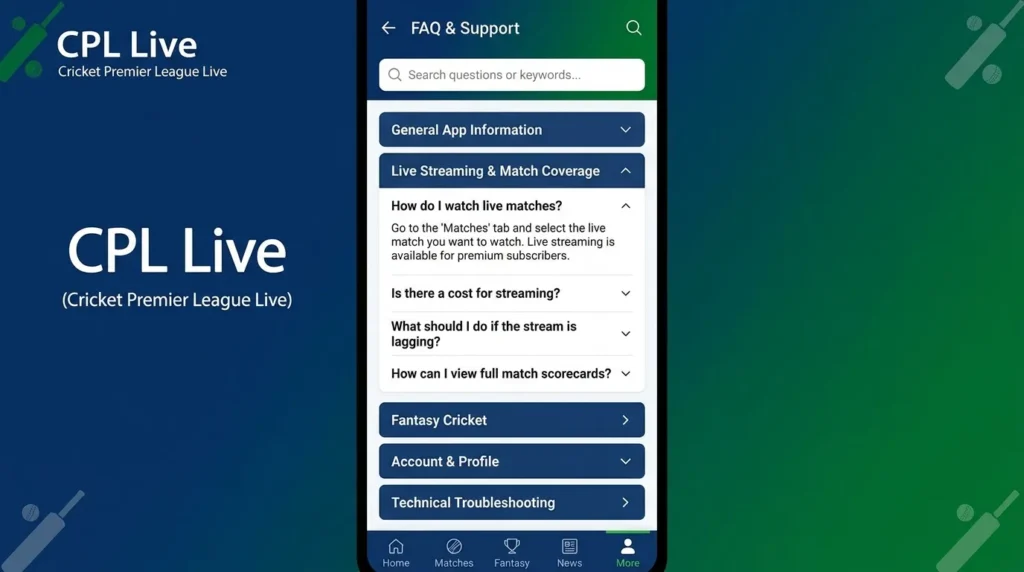
Is my cricket app free?
Yes, the official app is free to download. However, normal mobile data charges may apply away from Wi-Fi. The official store listings present it as a free account tool. Can I pay my Cricket bill in the app?
Yes. Sign in, select the payment area, enter the amount, and choose a supported method. Cricket lists cards and eligible digital wallets. ays review the amount before submitting. Then keep the payment confirmation.
Can I see data usage for every line?
Yes, you can view usage by line on a multi-line account. Tap Usage, then select the line you want. What should I do when the app will not open?
First, check your connection and install updates. Then restart your phone and try again.
If that fails, reinstall the official app. You can also use the Cricket website while troubleshooting.
Can I use the app without signing in?
Most account tools require a sign-in. However, Cricket offers Quick Pay online for payments without full account access. ck Pay works well for a one-time payment. Still, it does not provide full account management.
Is my cricket app safe?
The official app gives you normal access to your Cricket account. Still, your security habits matter.
Use the official app store. Choose a unique password, protect your phone lock, and never share security codes..
Take Control With the My Cricket App
My cricket app can turn account management into a quick routine. You can pay bills, review usage, check billing history, and manage useful features.
Start with the basics. First, confirm your due date. Then check each line and review your payment method. Finally, keep the app updated and your login private.
A few minutes each month can prevent missed payments and data surprises. So, open the app today and review your account. You may find a setting, feature, or charge that needs attention.