Lost your TV remote between the sofa cushions again? The LG remote app can save your movie night in seconds.
LG’s official phone remote now lives inside the LG ThinQ app. It turns a compatible smartphone into a handy TV controller. Therefore, you can adjust volume, change channels, select inputs, and open apps from your phone.
The app can also help when your Magic Remote needs new batteries. In addition, it offers a keyboard that makes TV searches less painful. That is useful when you need to type a long password or film title.
However, setup can feel confusing the first time. Your TV may not appear, or the pairing code may fail. This guide explains each step in simple language. You’ll also learn which features work, what can go wrong, and how to fix common problems.
What Is the LG Remote App?
The LG remote app is the remote-control feature inside LG ThinQ. LG moved the older LG TV Plus features into this main smart-home app.
Once connected, the app creates a virtual remote on your phone. It works with supported LG smart TVs and compatible mobile devices. However, available controls can vary by TV model, webOS version, region, and phone.
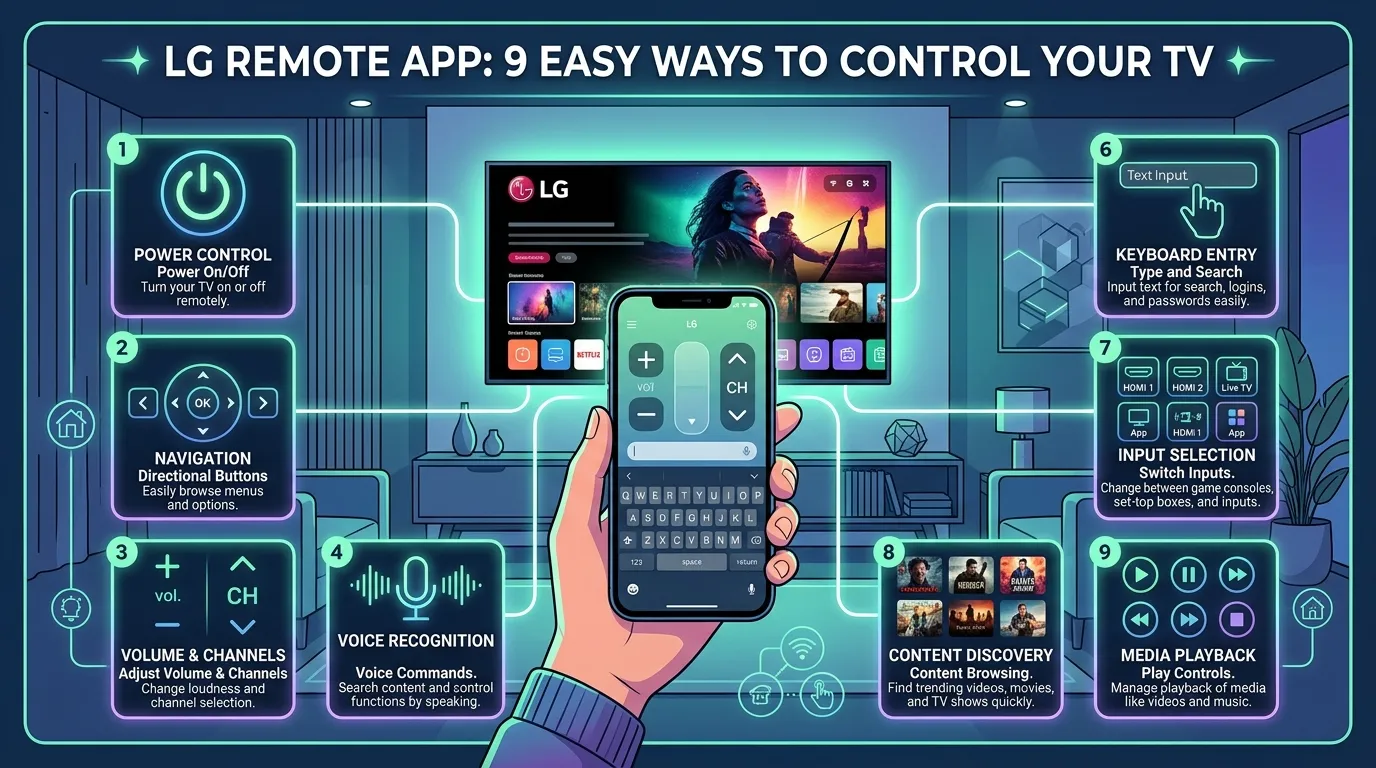
You can usually perform common tasks such as:
- Turn the TV off
- Turn supported TVs on
- Raise or lower the volume
- Change channels
- Select an HDMI input
- Open installed TV apps
- Use arrows and an OK button
- Move a virtual pointer
- Search for shows or films
- Share supported phone content
- Type with your phone keyboard
The LG remote app is especially useful when the physical remote disappears. Also, it gives each family member an extra controller without buying new hardware.
Still, the phone app does not make your Magic Remote useless. A physical remote feels faster for quick actions. Meanwhile, the app works well for typing, app launching, and backup control.
Pro Tip: Keep one physical remote near the TV. You may need it if the TV loses its network connection.
How to Set Up the LG Remote App
Pairing the LG remote app should take only a few minutes. First, update your TV software and your phone’s operating system.
LG’s support guide advises connecting the phone and TV to the same network. It also suggests using the same 2.4 GHz Wi-Fi band during setup.
Follow these steps:
- Download LG ThinQ.
Open the Apple App Store or Google Play Store. Then search for the official LG ThinQ app from LG Electronics. - Open the app and sign in.
Create an LG account or use an available sign-in option. Then accept the required terms. - Turn on your LG TV.
Also, confirm that the TV has an active network connection. - Connect both devices to one network.
Your phone and TV should use the same home Wi-Fi. Guest networks may block device discovery. - Tap the add-device button.
In LG ThinQ, choose the plus symbol or Add a Device. - Select TV from the product list.
Then wait while the app searches for nearby LG televisions. - Choose your TV.
Check the model name carefully if several LG TVs appear. - Enter the pairing code.
A code should appear on the television. Enter it in the app when prompted. - Open Remote Control.
Select the TV device card. Then tap the remote option to see the controls.
After pairing, test the volume and navigation buttons. Next, try switching inputs or opening a streaming app.
The LG remote app may request local-network, Bluetooth, or location permissions. These permissions can help the phone discover nearby devices. However, permission names differ between Android and iPhone.
9 Best Ways to Use the LG Remote App
The LG remote app does more than replace missing buttons. It can make daily TV control much easier.
1. Type searches with your phone
Use the phone keyboard when the TV shows a supported text box. This helps with titles, passwords, and account logins.
2. Launch apps quickly
Open the TV card in LG ThinQ. Then tap the streaming service you want.
3. Change the input
Move between live TV, a games console, and a streaming box. Therefore, you won’t need to cycle through every source.
4. Control volume from another seat
Your phone is often closer than the remote. As a result, you can lower loud adverts quickly.
5. Use it as a backup remote
Set up the LG remote app before the physical remote fails. Otherwise, pairing may become harder later.
6. Share supported content
LG ThinQ may share photos, videos, music, or your phone screen. However, options depend on your devices.
7. Search for entertainment
Some supported setups let you search for programmes through the TV card. Then you can choose where to watch them.
8. Control more than one TV
You can add several supported TVs to one ThinQ home. Therefore, label each television clearly.
Names such as “Living Room TV” prevent mistakes.
9. Manage other LG devices
LG ThinQ supports many compatible LG appliances. Therefore, one app may control your TV and other connected products.
LG Remote App vs Magic Remote
Should you use the LG remote app or the physical Magic Remote? In practice, they work best together.
| Feature | LG remote app | Magic Remote |
| Basic TV controls | Yes | Yes |
| Works when phone is charging | No | Yes |
| Easy text typing | Often easier | Slower |
| Virtual pointer | Supported on compatible TVs | Built in |
| Requires home network | Usually yes | No |
| Easy to misplace | Less likely | More likely |
| Launch TV apps | Yes | Yes |
| Controls supported appliances | Yes, through ThinQ | No |
| Best for guests | After pairing | Yes |
| Works during Wi-Fi problems | Usually no | Yes |
The phone app wins when you need a keyboard or cannot find the remote. However, the Magic Remote wins during network problems.
In my experience, the best setup uses both. Keep the Magic Remote near the sofa. Then keep LG ThinQ installed as a reliable backup.
Common LG Remote App Problems and Fixes
Even a good TV control app can have a bad day. Fortunately, most problems come from the network or phone permissions.
The TV does not appear
First, check that both devices use the same Wi-Fi network. Also, avoid guest Wi-Fi because it may block device discovery.
Next, restart the TV, phone, and router. Then open the LG remote app and search again.
The pairing code does not work
Enter the newest code shown on the TV. Also, confirm that you selected the correct television.
The buttons do nothing
Close LG ThinQ and open it again. Then check for app and TV software updates.
If that fails, remove the TV from ThinQ and pair it again.
The phone cannot turn on the TV
LG says webOS 3.5 and later models can support app power controls. Older versions may support power-off only.
Network standby settings can also affect power-on. Therefore, check the mobile power or network wake setting on your TV.
The app keeps disconnecting
Weak Wi-Fi can interrupt commands. Therefore, improve coverage near the television.
Also, stop your phone from putting LG ThinQ into deep sleep.
The keyboard does not appear
The keyboard appears only in supported text fields. Therefore, select a search box on the TV first.
Some streaming apps block outside keyboard input. In that case, use the physical remote or the service’s mobile app.
Safety and Privacy Tips
Download the LG remote app only through an official app store. Also, confirm that LG Electronics appears as the developer.
Third-party remote apps may contain adverts or subscriptions. Therefore, review the developer and permissions before installing one.
Use these simple habits:
- Protect your LG account with a strong password
- Remove old phones from your account
- Keep your TV and phone updated
- Avoid pairing on public Wi-Fi
- Never share login codes
Also, protect your home Wi-Fi with a strong password.
Is the LG Remote App Right for Your TV?
The LG remote app mainly works with supported LG smart TVs. However, an older television without network features may not connect.
First, check your TV settings for Wi-Fi or Ethernet options. Then note the model number and webOS version.
Next, check LG’s support page for your exact model. Features may vary by model, region, and mobile device.
The app suits you when:
- Your LG smart TV connects to Wi-Fi
- You often lose the physical remote
- You type many searches
- You already use LG ThinQ
- You want a backup controller
However, a compatible replacement remote is better for an older, non-smart television.
LG Remote App FAQ
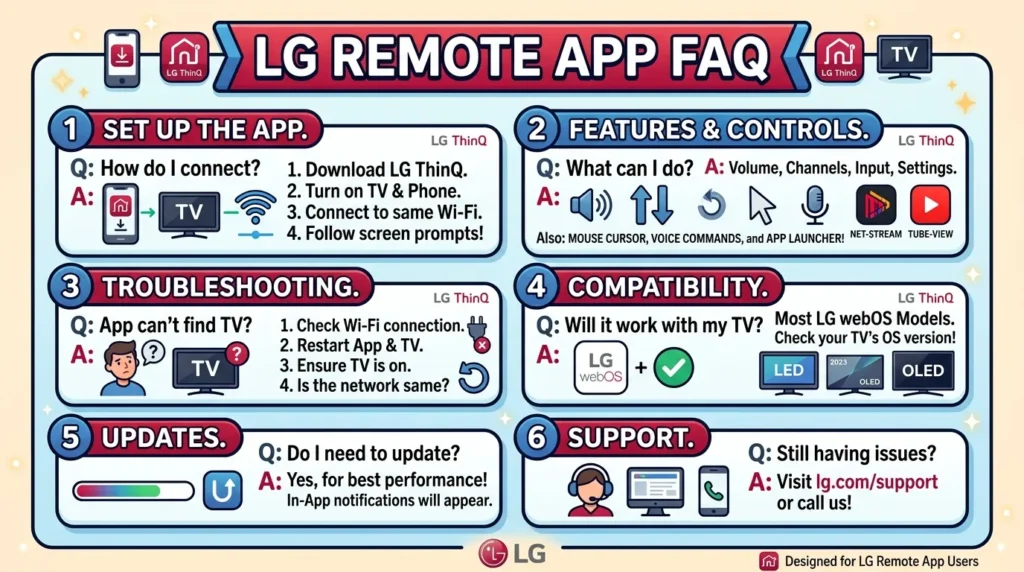
Is the LG remote app free?
Yes, LG ThinQ is free from official app stores. However, normal mobile data charges may apply.
Avoid unrelated apps that demand payment before pairing. Always check the developer name first.
What is the official LG TV remote app called?
The official app is LG ThinQ. LG moved the older LG TV Plus remote features into ThinQ.
Therefore, search for LG ThinQ in your phone’s app store.
Does the LG remote app work without Wi-Fi?
Most controls need the phone and TV on the same network. Therefore, routine use normally requires a shared local network.
Supported Android phones may use Wi-Fi or Bluetooth for power-on. However, this depends on your TV model.
Can I turn my LG TV on with my phone?
Many webOS 3.5 or later TVs support app power-on and power-off. Older versions may support power-off only.
You may also need to enable a network wake setting. Therefore, check the power options on your exact model.
Why will LG ThinQ not find my TV?
The devices may use different networks. Also, guest Wi-Fi can block discovery.
Place both devices on the same home network. Then restart them and check local-network permissions.
Can I use the app on iPhone and Android?
Yes, LG ThinQ supports iPhone and Android devices. However, permission steps and available features may differ.
Always install the latest version supported by your phone.
Can several people control the same TV?
Several household members can connect to supported devices. However, account-sharing options may vary.
For better security, use official home-sharing tools instead of sharing one password.
Control Your TV Without the Missing Remote
The LG remote app can turn your phone into a useful backup controller. It also makes typing, input changes, and app launching much easier.
First, install the official LG ThinQ app. Then connect your phone and TV to the same home network. Finally, pair the television and test the main controls.
Keep the physical remote nearby because Wi-Fi problems can still happen. However, once ThinQ is ready, you will not need to panic over lost batteries again.