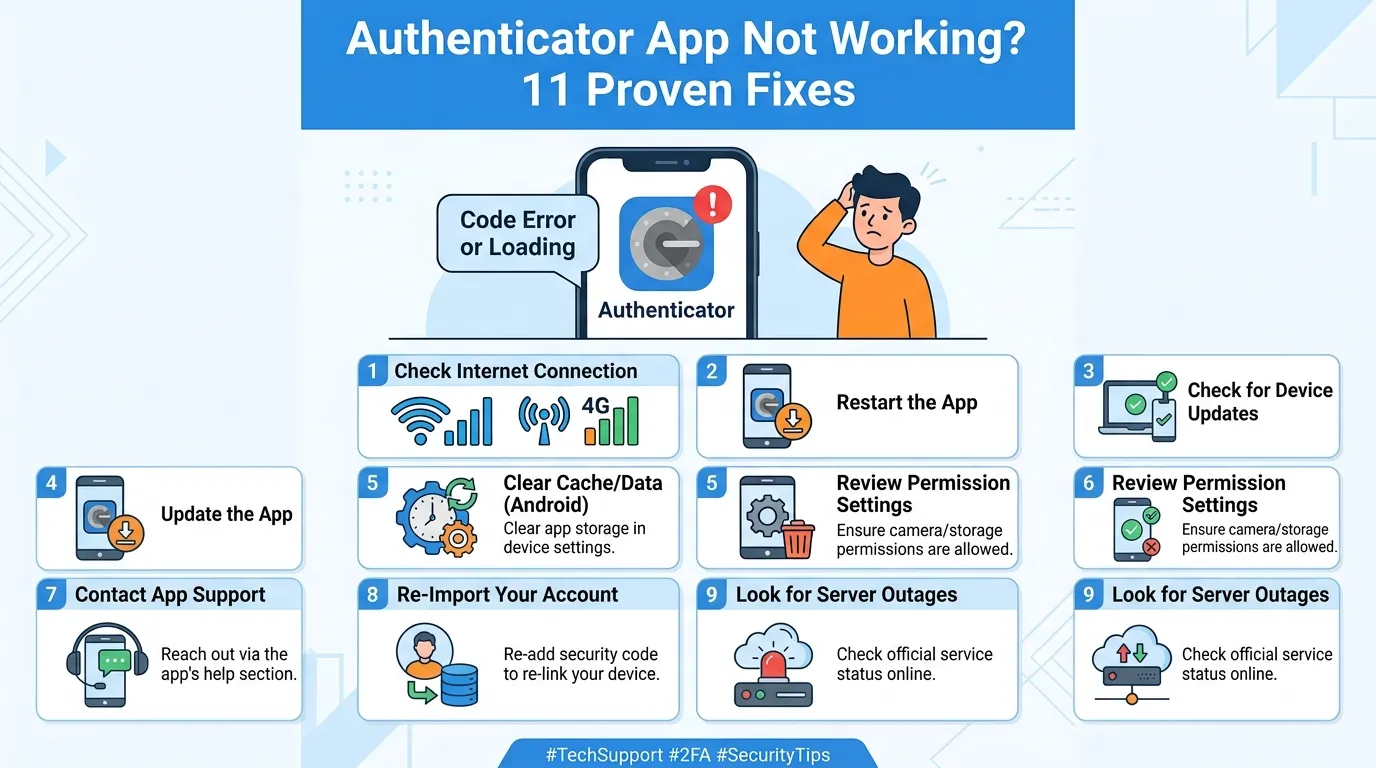
Your login is waiting, the timer is moving, yet the code keeps failing. Few tech problems feel more urgent. When your authenticator app not working, the issue blocks email, banking, work, or social accounts, it can feel like you’re locked out for good.
The good news is that most problems have a simple cause. Your phone clock may be wrong. You may be using an old code. Also, a recent phone change can break the setup.
This guide gives you safe fixes in a clear order. Start with quick checks. Then use account recovery only when needed. In my experience, deleting accounts too early creates a bigger mess.
Why Is Your Authenticator App Not Working?
An authenticator app creates a temporary verification code for two-factor authentication. Many codes change every 30 seconds. Therefore, your phone and the website must agree on the time.
Some apps also send push notifications. Those prompts need working notifications and a network connection. However, rotating codes may still work without mobile service or Wi-Fi.
Your authenticator app not working problem usually comes from one of these causes:
- Your phone’s date, time, or time zone is wrong.
- The current verification code expired before you entered it.
- You selected the wrong account inside the app.
- Push notifications are turned off.
- Battery saving blocks background activity.
- The authenticator app needs an update.
- You changed phones without transferring your accounts.
- The website’s two-factor authentication setup changed.
- Your work or school account needs an admin reset.
First, identify what failed. Is a code rejected, missing, or never delivered as a prompt? That detail points toward the right fix.
Pro Tip: Don’t uninstall the app or delete an account yet. First, confirm that you have backup codes or another sign-in method.
Authenticator App Not Working? Try These 11 Fixes
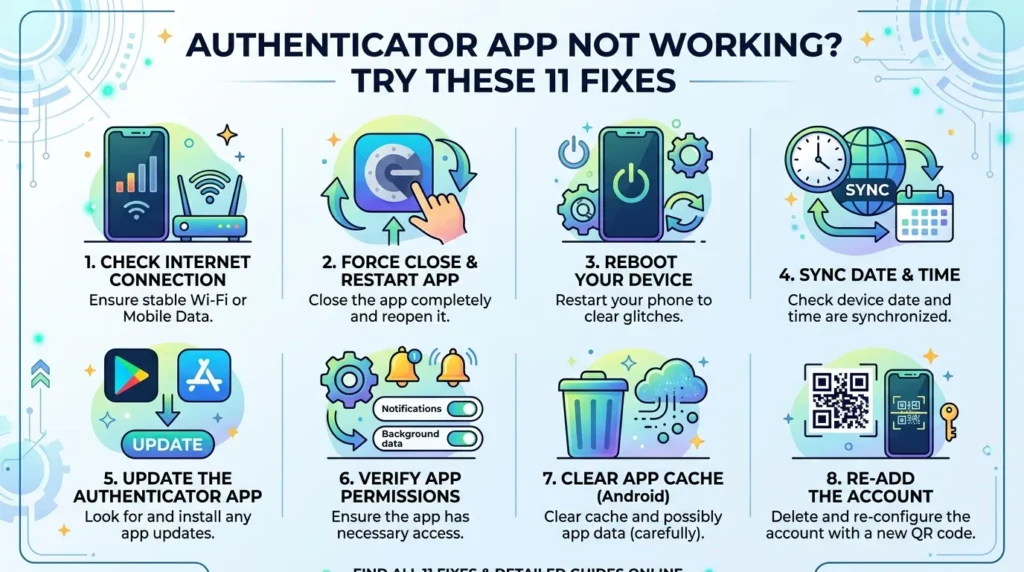
Work through these steps in order. After each fix, request a fresh login and test again.
1. Wait for a fresh verification code
A code near the end of its timer may expire while you type it. Therefore, wait until a new code appears. Then enter it right away.
Also, enter it without extra spaces. This simple step often fixes an authenticator app not working error.
2. Check the account name carefully
You may have several entries for one service. Check the email address beside the 2FA code. Then compare it with the login page. A valid code for the wrong account will fail.
3. Turn on automatic date and time
When the authenticator app not working issue affects every code, check time sync. Enable automatic date and time. Also, enable the automatic time zone.
On Android, the path often looks like this:
- Open Settings.
- Tap System or General management.
- Tap Date and time.
- Turn on automatic time and time zone.
- Restart your phone.
On an iPhone, follow these steps:
- Open Settings.
- Tap General.
- Tap Date & Time.
- Turn on Set Automatically.
- Restart the phone.
Afterward, request a new login attempt. Don’t reuse a code from the previous screen.
4. Check your internet connection
A rotating authenticator code may work offline. However, push notifications need a network connection. Therefore, switch between Wi-Fi and mobile data.
Also, turn off airplane mode. If the authenticator app not working problem affects prompts only, the connection may be the cause.
5. Allow push notifications
When the authenticator app not working issues means no prompt appears, your phone may be blocking alerts.
Open notification settings and allow alerts for the app. On Android, also allow background data. Next, open the app before requesting another sign-in.
6. Disable battery restrictions for the app
Battery saver can stop apps from running in the background. As a result, approval prompts may arrive late or not at all.
On Android, choose Unrestricted or Not optimized for the app. On iPhone, turn off Low Power Mode for a quick test. Then request a new prompt.
7. Update the app and phone software
If your authenticator app not working recently, an old app version may be the cause. Open the App Store or Google Play. Then install any available authenticator update.
Also, check for a phone update. Restart after both updates. When an authenticator app not working problem starts after an update, a later patch may help.
8. Confirm the app has the needed permissions
Your app may need camera access when you scan a QR code. It may also need notifications, network access, or screen-lock protection.
Open app permissions and allow only what setup needs. If a QR code won’t scan, clean the lens and raise the other screen’s brightness.
9. Use another approved sign-in method
Look for options such as Try another way, Use a backup code, or Send a text. You may also have a passkey, security key, trusted device, or recovery email.
Use a method already linked to your account. After signing in, repair the broken authenticator method. Backup codes usually work once, so mark each used code.
10. Reconnect the authenticator app safely
If your authenticator app not working issue affects one website, the saved setup may no longer match. First, sign in another way. Next, open security settings and add a new authenticator method.
Then scan the new QR code and test it before signing out. Remove the old method only after the new one works.
Never scan a QR code sent by an unknown person. A fake setup code can connect your login to someone else’s device.
11. Start official account recovery
If the authenticator app not working problem blocks every method, use the service’s official recovery process. Go directly to the company’s website or app. Avoid links from unexpected emails or messages.
You may need old passwords, trusted devices, or recovery details. For work and school accounts, contact your IT administrator. Therefore, give accurate answers and avoid repeated guesses.
Quick Diagnosis: Match the Symptom to the Fix
Still unsure where to begin? Use this table to narrow down your authenticator app not working.
| What you see | Likely cause | Best first fix |
| Code appears but fails | Wrong time or expired code | Enable automatic time and wait for a new code |
| No sign-in prompt | Notifications or internet blocked | Check connection and notification settings |
| Prompt goes to old phone | Old device remains registered | Use another method and update security settings |
| Codes vanished after phone change | Accounts weren’t transferred | Restore a backup or use account recovery |
| QR code won’t scan | Camera access or poor display | Allow camera access and raise screen brightness |
| App opens but crashes | Old app or software conflict | Update the app, restart, and update the phone |
| One account fails, others work | Service setup mismatch | Reconnect that account’s 2FA method |
| Work account fails | Admin policy or registration issue | Contact your IT administrator |
Don’t reset every account when only one service has failed.
Common Mistakes That Make the Problem Worse
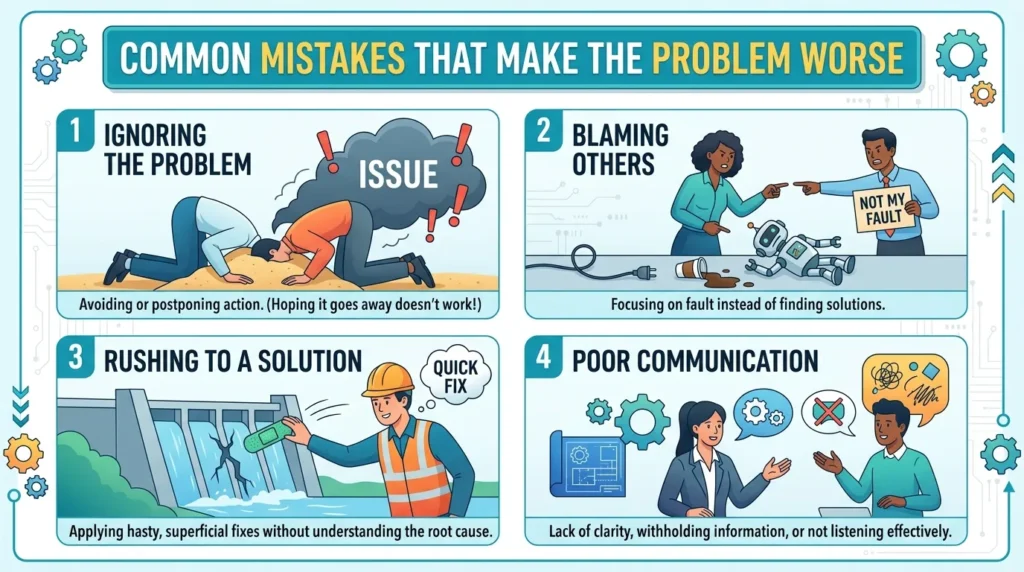
When you’re locked out, it’s tempting to try everything at once. However, a rushed fix can remove your last working recovery path.
Deleting the app too early
Uninstalling may remove locally stored codes. Therefore, check whether your app syncs or backs up accounts first. Also, confirm that you know how restoration works on your device.
Removing the account entry before testing a replacement
Don’t delete an old 2FA entry just because its code fails. First, sign in through another method. Then add and test the replacement.
Sharing a code or QR image
A verification code proves that you control a trusted factor. Never share it with a caller, chat agent, or social media account. Also, keep QR setup images private.
Approving an unexpected prompt
A surprise request may mean someone knows your password. Deny the prompt. Then change your password through the official website and review recent sign-ins.
Relying on one recovery method
Your phone can break, disappear, or reset. Therefore, keep more than one secure recovery choice. Good options include backup codes, a passkey, or a hardware security key.
Turning off two-factor authentication
Disabling 2FA may solve the immediate login issue, but it lowers account security. Instead, replace the broken method. Then keep at least two secure sign-in options.
How to Prevent Future Authenticator Problems
Once you regain access, improve your setup. This can prevent another authenticator app not working in an emergency.
Use these steps:
- Save backup codes in a secure password manager or locked location.
- Add a second trusted sign-in method.
- Keep your recovery email and phone number current.
- Turn on cloud sync or encrypted backup when you trust the provider’s option.
- Transfer accounts before wiping or selling an old phone.
- Update your authenticator app regularly.
- Review account security after changing devices.
- Remove old phones only after the new phone works.
Also, label similar accounts with the service name and email address. For high-value accounts, consider a passkey or hardware security key.
Authenticator App Not Working FAQ
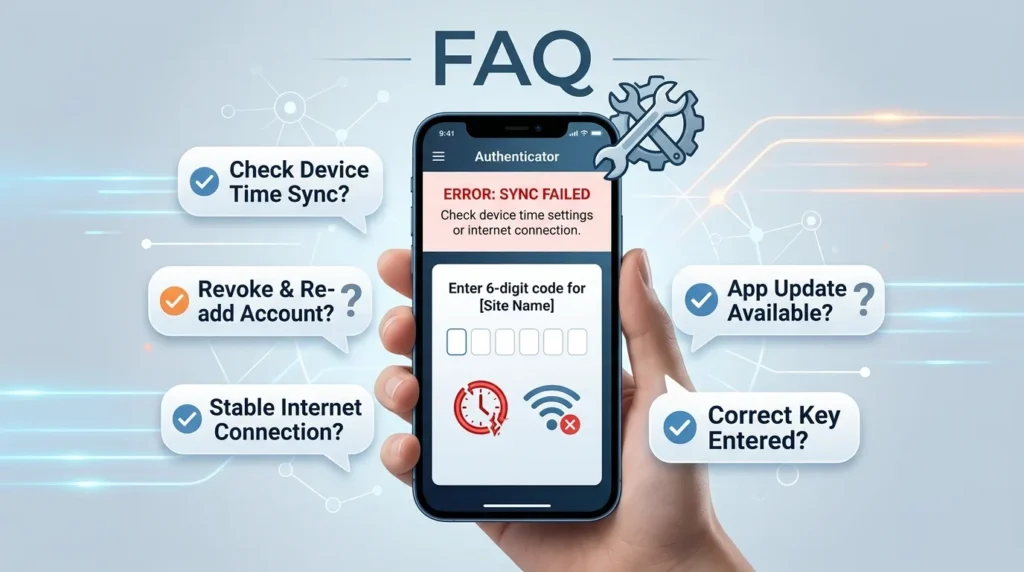
Why are my authenticator codes always wrong?
Your phone clock may be out of sync. First, turn on automatic date, time, and time zone. Then restart your phone and enter a fresh code.
Also, confirm that you selected the correct account. Similar account names often cause this authenticator app not to work.
Does an authenticator app need internet access?
Many time-based verification codes can appear without internet access. However, push approval requests need a working connection.
Therefore, test Wi-Fi and mobile data when prompts don’t arrive. Also, check airplane mode and background data settings.
What should I do after getting a new phone?
Transfer or restore your authenticator accounts before erasing the old phone. Then test each important account on the new device.
If you no longer have the old phone, use backup codes or another sign-in method. Otherwise, start official account recovery.
Why am I not receiving Microsoft Authenticator prompts?
Notifications may be disabled. Your phone may also block background activity or lack a network connection.
Open the app, allow notifications, and remove battery restrictions. If the prompt still goes to an old device, update your registered security method.
Can I reinstall the app without losing my codes?
That depends on the app and your backup settings. Some apps sync accounts. Others store codes only on the device.
Therefore, don’t uninstall until you confirm a backup or another sign-in method. Reinstalling without preparation can make recovery harder.
How do I recover an account without backup codes?
Choose Try another way on the login screen. You may have a trusted device, recovery email, phone number, passkey, or security key.
If none works, use the provider’s official recovery form. For a work or school account, contact your IT team.
Fix the Problem Without Risking Your Account
An authenticator app not working can feel alarming. However, the cause is often simple. Start with a fresh code, the correct account, and automatic time settings. Then check your connection, notifications, battery controls, and app updates.
Most importantly, protect your recovery options. Don’t delete the app or remove an account until another sign-in method works. Once you regain access, save backup codes and add a second secure method.
Now return to the first fix that matches your symptom. Test one change at a time. That calm approach gives you the best chance of restoring access safely.