Have you ever searched for an Android app, found it on a website instead of the Play Store, and wondered if this is safe to download? That moment of uncertainty is something millions of Android users face every week. An APK guide is exactly what you need to answer that question confidently and protect yourself every time.
APK files are the installation packages that Android uses for every app. Understanding how they work, where to get them safely, and how to verify them before installing gives you far more control over your Android experience than most users ever achieve.
In this complete APK guide for 2026, you’ll learn exactly what an APK file is and how it works, when downloading an APK outside the Play Store makes sense, which sources are safe and which are dangerous, how to install APK files correctly step by step, how to verify a file before installation, and what to do if something goes wrong. Whether you’re completely new to APKs or want to sharpen your existing knowledge, this guide covers everything you need.
Let’s get started.
What Is an APK File And How Does It Work?
An APK short for Android Package Kit is the file format that Android uses to install applications. Think of it as the Android equivalent of a .exe file on Windows or a .dmg file on Mac. Every app you install on your Android device, regardless of where it comes from, arrives as an APK file.
When you install an app through the Google Play Store, Android downloads and runs an APK behind the scenes. The Play Store handles everything automatically you tap Install and the process completes without you ever seeing the APK file itself. However, APK files can also be downloaded directly and installed manually, which is what most people refer to when they discuss “APK downloads.”
What’s Inside an APK File
An APK file is actually a compressed archive similar to a ZIP file. It contains several components that Android needs to install and run the application.
Inside every APK you’ll find:
- classes.dex the compiled application code that Android runs
- AndroidManifest.xml declares the app’s permissions, features, and requirements
- res/ folder contains images, layouts, and other visual resources
- assets/ folder additional files the app needs to function
- META-INF/ folder contains signature files that verify the app’s authenticity
- lib/ folder native code libraries for different processor architectures
The signature files inside META-INF are particularly important. Every legitimate APK is signed with a digital certificate from its developer. Android checks this signature when you install an app. If the signature doesn’t match, or if the file has been tampered with, Android refuses to install it.
This signature system is one of the key reasons why modified APKs carry real risks: altering any part of the original APK file invalidates the developer’s signature, which means modified versions are either re-signed with untrusted certificates or distributed in ways that bypass this protection.
In my experience, most Android users have used dozens of APKs without realizing it every Play Store install is one. Understanding this demystifies the concept immediately.
Practical Tip: Open Settings → Apps on your Android device and tap any installed app. The “App info” screen shows the app’s package name; this is the unique APK identifier. Knowing an app’s package name helps you verify you’re installing the genuine version and not a fake clone.
When Does Downloading an APK Actually Make Sense?
This is the most important question in any APK guide because the answer determines whether a direct APK download is appropriate or unnecessary.
In the vast majority of situations, the Google Play Store is the correct place to get apps. It’s safer, more convenient, and automatically maintains updates. However, several legitimate scenarios make direct APK downloads the right choice.
Regional App Unavailability
Some apps are unavailable in certain countries’ regional Play Store versions due to government restrictions, licensing agreements, or developer decisions. Users in these regions may find that an app they need simply doesn’t appear in their local Play Store even though it’s freely available elsewhere.
In these cases, downloading the APK directly from the official developer’s website is a legitimate and appropriate solution. The key distinction is always the source official developer website versus third-party APK hosting site.
Devices Without Google Play Services
Certain Android devices, particularly some Huawei models released after 2019, and Android-based devices running custom firmware don’t include Google Play Services or the Google Play Store. Users of these devices have no access to Play Store apps and must install everything via APK.
For these users, APK downloads from official developer websites are not just acceptable, they’re the only option available.
Installing Older App Versions
Occasionally, a developer releases an update that removes a feature, introduces a bug, or changes something users preferred in the previous version. Some websites legally archive previous versions of apps. In these cases, downloading an older specific version via APK gives users access to functionality that current versions don’t provide.
Beta Testing and Developer Builds
Many app developers distribute beta versions of their apps as APK files to testers before pushing updates to the Play Store. If you’re testing a new feature for a developer, the APK they provide is legitimate and appropriate to install.
Situations where APK download is appropriate:
- ✅ App unavailable in your regional Play Store
- ✅ Device lacks Google Play Services
- ✅ Installing a specific older version for legitimate reasons
- ✅ Beta testing at developer’s request
- ✅ Downloading from the official developer’s own website
Situations where APK download is NOT appropriate:
- ❌ Trying to get a paid app for free
- ❌ Downloading a “modded” or “cracked” version
- ❌ The Play Store version is available but you’re on a random APK site
- ❌ Someone shared the APK via social media or messaging
Practical Tip: Before downloading any APK from outside the Play Store, ask yourself one question “Is this app unavailable to me through the Play Store?” If the answer is no and you can access it normally, use the Play Store. The extra steps of manual APK installation are only worth taking when genuinely necessary.
Safe vs Unsafe APK Sources The Complete List
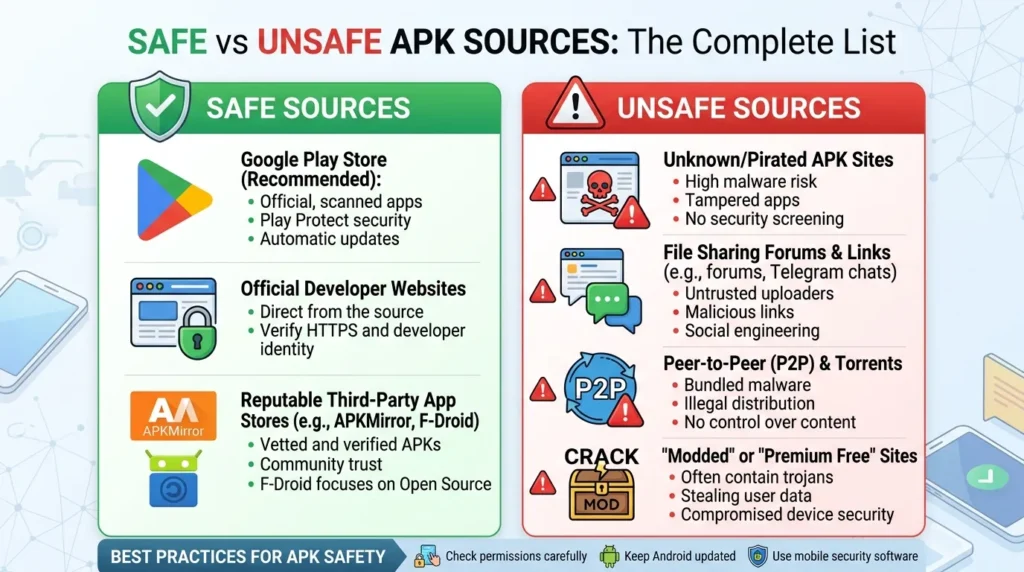
The source of an APK file is the single most important safety factor in this entire APK guide. The same app can be completely safe from one source and actively dangerous from another.
Genuinely Safe APK Sources
Official Developer Websites The developer’s own website is always the safest non-Play-Store source. Companies like Proton AG (Proton VPN), Windscribe, and Mullvad all offer official APK downloads on their websites alongside Play Store listings. These files are identical to the Play Store versions and signed with the same developer certificate.
F-Droid F-Droid is an open-source app repository that hosts exclusively free and open-source Android applications. Every app on F-Droid has its source code publicly available for inspection. The platform builds apps directly from source code, which means the APK you download matches exactly what the developer published. F-Droid is a genuinely trustworthy alternative app store for open-source software.
Amazon Appstore Amazon operates its own Android app store primarily for Kindle Fire devices, but it also works on standard Android phones. Apps on the Amazon Appstore go through a review process similar to the Play Store. It’s a legitimate secondary source, particularly for apps that appear on both platforms.
APKMirror APKMirror is one of the few third-party APK hosting sites with a strong reputation for safety. It only hosts apps that were originally published on the Play Store, verifies APK signatures against the originals, and doesn’t accept modified or cracked versions. However, always verify the signature yourself even when using APKMirror it’s good practice regardless of source.
Dangerous APK Sources to Avoid
Generic APK hosting websites Sites with names like “APKPure alternatives,” “free APK download,” or similar particularly those that appear prominently in search results for modified app versions regularly host modified APKs containing malware, adware, or data-stealing code.
Social media and messaging apps that share APK files through WhatsApp groups, Telegram channels, Facebook posts, or Instagram DMs should never be installed. There’s no way to verify these files, and they’re a primary distribution channel for modified malicious apps.
Torrent sites APK files distributed through torrent networks are almost always modified. Even if the modification is only to remove ads, the process of modifying and re-signing an APK creates an opening for additional malicious code to be introduced.
Sites offering “premium unlocked” or “mod” versions Any website offering a paid app for free, or a modified version with “unlimited coins,” “premium unlocked,” or similar claims is distributing modified software. These modifications violate the original developer’s terms of service and frequently contain harmful additions.
Practical Tip: Before visiting any APK download website, search the site name plus “safe” or “review” on Google. Community discussions on Reddit particularly r/androidapps quickly reveal whether a source has a trustworthy reputation or a history of distributing problematic files.
How to Enable Unknown Sources on Android Safely
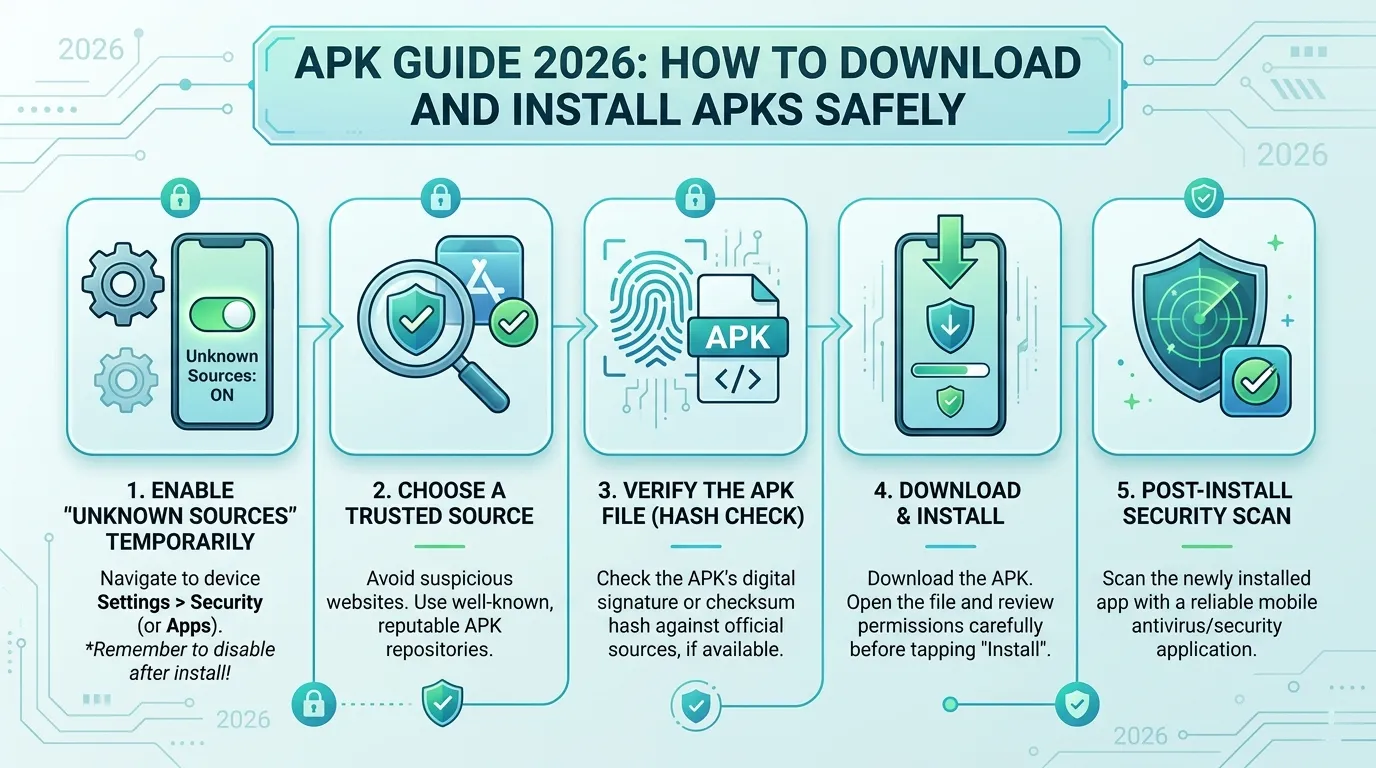
Before you can install any APK file from outside the Play Store, you need to enable installation from unknown sources. This APK guide covers the correct way to do this including how to limit the permission to minimize security risk.
On Android 8.0 and Above (Recommended Method)
Android 8.0 introduced per-app unknown sources permissions, a significant improvement over the old system-wide toggle. Instead of enabling unknown installations for your entire phone, you enable it only for specific apps.
Step-by-step process:
- Download your APK file using your browser (Chrome, for example)
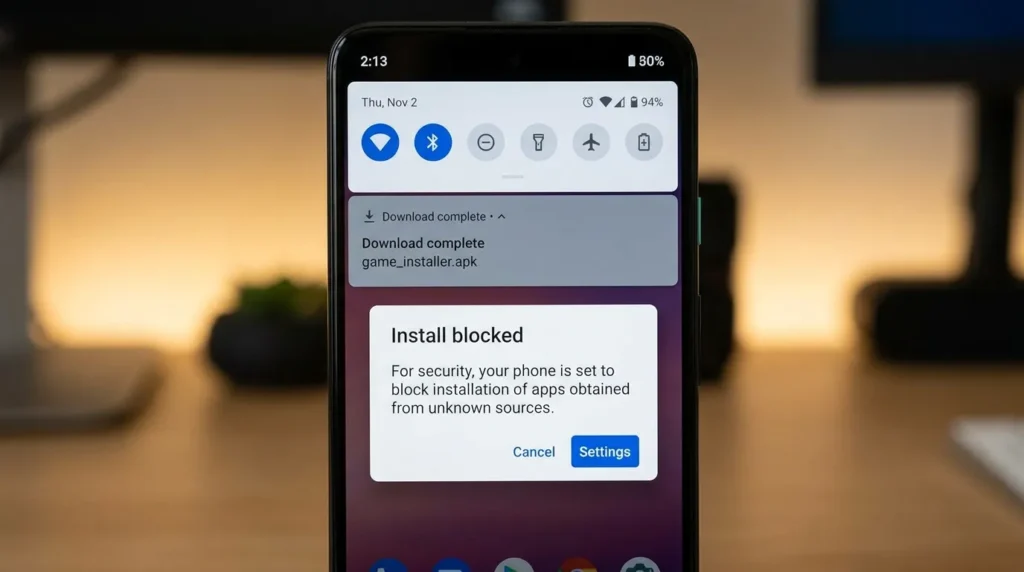
- When you tap the downloaded file to install it, Android prompts you
- The prompt says “Chrome is not allowed to install unknown apps”
- Tap Settings in the prompt
- Toggle “Allow from this source” to ON for Chrome only
- Tap the back button and proceed with installation
- After installation completes, return to that settings screen and toggle it back OFF
This approach limits the permission to the specific app you used for downloading Chrome in this example. No other app on your phone gains the ability to install unknown sources.
On Older Android Versions (Android 7 and Below)
On older Android versions, unknown sources is a system-wide setting:
- Go to Settings → Security
- Find “Unknown Sources” and toggle it ON
- Read the warning and confirm
- Install your APK file
- Immediately return to Settings → Security and toggle Unknown Sources back OFF
Leaving this setting permanently enabled on older Android versions creates ongoing security risk any app on your device could potentially install other apps without your knowledge.
Why You Should Disable It After Each Use
This is the most important habit in this section. Keeping unknown sources enabled permanently means that if any malicious app ever runs on your device, it has the ability to silently download and install additional apps. Disabling the permission immediately after each APK installation eliminates this risk.
Practical Tip: Set a reminder on your phone immediately after enabling unknown sources, something as simple as a two-minute timer. When it goes off, check that you’ve disabled the permission again. This simple habit prevents the most common security mistake people make with APK installations.
How to Install an APK File Step by Step
With unknown sources enabled appropriately, installing an APK file is straightforward. This section of the APK guide walks through the complete process from download to first launch.
Complete APK Installation Process
Step 1 Download from a verified safe source Open your browser and navigate directly to the official source, the developer’s website, F-Droid, or APKMirror. Download the APK file. It typically saves to your Downloads folder automatically.
Step 2 Verify the file before installing Before tapping the downloaded file, verify it using one of the methods in the next section. This step takes two minutes and is worth every second.
Step 3 Open the APK file Open your Files or Downloads app, locate the APK file, and tap it. If you downloaded it through Chrome, you can also tap the completed download notification directly.
Step 4 Allow the installation permission Android shows the unknown sources permission prompt. Follow the process described in the previous section grant permission to Chrome (or your download browser) specifically, not system-wide.
Step 5 Review the permission screen Android shows you a list of permissions the app requests before installation. Review these carefully. Compare them against what the app actually needs: a calculator app shouldn’t need microphone access, for example.
Step 6 Tap Install Confirm the installation. Android installs the APK and places the app icon on your home screen or app drawer.
Step 7 Disable unknown sources immediately Return to Settings and disable the unknown sources permission you enabled in Step 4. Do this before launching the newly installed app.
Step 8 Launch and verify Open the app and confirm it functions as expected. If it behaves unusually, showing unexpected ads, requesting permissions immediately, or connecting to unfamiliar servers uninstall it immediately.
Practical Tip: After any manual APK installation, run a full scan using Google Play Protect. Go to Play Store → tap your profile icon → Play Protect → Scan. This automated scan checks all installed apps including sideloaded ones for known malicious behavior.
How to Verify an APK Is Safe Before Installing
Verification is the step most people skip and it’s one of the most valuable habits this APK guide can give you. These methods catch problems before they reach your device.
Method 1: VirusTotal Scan
VirusTotal is a free online service that scans files using over 70 different antivirus engines simultaneously. Upload your APK file at virustotal.com and wait approximately thirty seconds for results.
Interpreting results:
- Zero detections: Very likely safe
- One to two detections: Possibly a false positive search the specific detection name for more information
- Three or more detections: Strong indicator of a problem do not install
Method 2: SHA-256 Hash Verification
Many official developers publish a SHA-256 hash alongside their APK download. This is a unique cryptographic fingerprint of the file. If the APK has been modified in any way even a single byte changes the hash changes completely.
To verify on Android, use an app like HashDroid (available on the Play Store). Compare the hash it generates against the one published on the official developer website. An exact match confirms the file is unmodified.
Method 3: APK Signature Verification
Every legitimate APK is signed with the developer’s digital certificate. You can verify this signature using the free tool jadx on a computer, or through online APK analysis tools like APK Analyzer.
For simpler verification, APKMirror displays the certificate fingerprint for every APK it hosts. Compare the fingerprint of your downloaded file against the one shown for the Play Store version they should match exactly for official apps.
Method 4: Compare File Size
Check the file size of your downloaded APK against what the official source or Play Store listing indicates. Modified APKs are often slightly larger because additional code has been embedded. A size difference of more than a few kilobytes without explanation warrants investigation before proceeding.
Red Flags That Indicate a Dangerous APK
- VirusTotal detects three or more engines flagging the file
- Hash doesn’t match the official published value
- File size is significantly larger than the official version
- The APK requests permissions that don’t match the app’s purpose
- The app name or icon differs slightly from the official version
Practical Tip: Bookmark virustotal.com on your phone’s browser right now. The next time someone sends you an APK file or you download one from outside the Play Store, scanning it takes thirty seconds. That thirty seconds has the potential to prevent serious device compromise.
APK Guide Safe Sources Comparison Table
| Source | Safety Level | App Selection | Requires Account | Modified APKs | Best For |
| Google Play Store | ✅ Highest | 3+ million apps | ✅ Google account | ❌ Not allowed | All standard app needs |
| Official Developer Website | ✅ Very High | Single developer’s apps | ⚠️ Varies | ❌ Never | Apps restricted in your region |
| F-Droid | ✅ High | Open-source apps only | ❌ None needed | ❌ Not allowed | Privacy-focused open-source apps |
| Amazon Appstore | ✅ Good | Curated selection | ✅ Amazon account | ❌ Not allowed | Kindle and Fire device users |
| APKMirror | ⚠️ Use carefully | Play Store apps only | ❌ None needed | ❌ Not allowed | Older app versions |
| Random APK sites | ❌ Dangerous | Everything including mods | ❌ None | ✅ Common | Avoid completely |
Frequently Asked Questions
Is installing an APK file safe on Android?
Installing an APK is safe when you download it from a verified source, the official developer’s website, F-Droid, or the original Google Play Store. The risk comes from downloading APKs from unknown third-party websites, messaging apps, or torrent sites. Always scan any APK with VirusTotal before installation and verify the source is legitimate before proceeding.
What is the difference between an APK and an app on the Play Store?
There’s no technical difference: every Play Store app is delivered as an APK file. The distinction is in how it reaches your device. Play Store apps are verified, automatically updated, and installed through Google’s secure infrastructure. Manual APK installations bypass this process, which is why verifying the source and scanning the file are essential steps when installing outside the Play Store.
Can an APK give a virus to my Android phone?
Yes, a malicious APK file can install harmful software on your Android device. Modified APKs from untrusted sources can contain spyware, adware, banking trojans, ransomware, or account-stealing code. This is why the source of an APK matters enormously. APKs from official developer websites and F-Droid carry the same risk level as Play Store apps which is very low. APKs from random websites or sharing apps carry significantly higher risk.
How do I know if an APK is the official version and not a fake?
Three checks confirm an APK is genuine: verify the SHA-256 hash matches the one published on the official website; scan with VirusTotal and check for zero or near-zero detections; and compare the APK signature certificate fingerprint against the Play Store version. Any mismatch in these checks indicates the file may have been modified and should not be installed.
Do I need to keep unknown sources enabled after installing an APK?
No and you shouldn’t. Disable the unknown sources permission immediately after completing each APK installation. On Android 8.0 and above, go back to the specific app’s permission (Settings → Apps → Chrome → Install Unknown Apps) and toggle it off. On older Android, go to Settings → Security → Unknown Sources and disable it. Leaving it enabled permanently increases your device’s vulnerability to unauthorized app installations.
Conclusion
This APK guide has given you everything you need to handle Android APK files safely and confidently in 2026. The knowledge gap between users who install apps blindly and those who verify sources and scan files is significant and now you’re firmly in the second group.
To recap the three most important takeaways: always prefer the Google Play Store when it’s available; only download APKs from official developer websites, F-Droid, or highly reputable sources; and scan every APK with VirusTotal before installation, then disable unknown sources immediately afterward. These three habits protect your device in virtually every scenario you’ll encounter.
Bookmark this guide and share it with someone who’s about to install their first APK from outside the Play Store. Informed users make better decisions and better decisions mean safer devices.