Have you ever struggled to check your work schedule, swap a shift, or request time off all while you’re away from a computer or a store’s back office? That frustration is exactly what the ATT Shift app is designed to solve. It’s a mobile scheduling and workforce management tool built specifically for AT&T employees, giving them direct access to their work schedule from anywhere, at any time.
For AT&T retail associates, call center staff, and other hourly employees, managing scheduling details used to require physical visits to a schedule board or logging into a desktop system during work hours. The Shift app changes that entirely by putting schedule visibility, shift swap requests, and time-off management directly in employees’ pockets.
In this guide, you’ll learn exactly what the AT&T Shift app does, who it’s for, how to download and set it up, which features matter most in day-to-day use, how to troubleshoot common issues, and how it compares to similar workforce scheduling tools. Whether you’re a new AT&T employee or someone returning after time away, this guide covers everything you need in 2026.
Let’s get started.
What Is the AT&T Shift App and Who Uses It?
The ATT Shift app is a workforce management application developed for use by ATT employees primarily those in retail store locations, call centers, and other hourly or shift-based roles. It connects to ATT’s internal scheduling systems, giving employees a convenient mobile way to manage their work life.
ATT operates thousands of retail locations and employs hundreds of thousands of people across its various divisions. Coordinating scheduling at that scale requires robust digital tools. The Shift app is one piece of that infrastructure, designed for the employee-facing side of scheduling management.
Who the App Is Designed For
The AT&T Shift app targets a specific user group AT&T employees working in scheduled, shift-based environments. This primarily includes:
- Retail store associates sales consultants, customer service representatives, and store managers at AT&T retail locations
- Call center employees customer support and technical assistance staff working defined shift schedules
- Field technicians technicians with assigned service windows and daily job schedules
- Other hourly employees across AT&T’s operational divisions
The app is not available for public download or general consumer use. It’s an internal enterprise tool that requires valid AT&T employee credentials to access and use. Therefore, if you search for it without being an AT&T employee, you won’t be able to log in even if you download the app.
The Problem It Solves
Before mobile scheduling apps became common in large enterprises, employees typically checked their schedules on printed boards, desktop terminals in back offices, or through phone calls to managers. None of these options work well when you’re at home planning your week or on the go between responsibilities.
The AT&T Shift app removes these friction points. Additionally, it gives managers a faster way to communicate schedule changes to their entire team without individual phone calls or texts.
Practical Tip: As soon as you start as an ATT employee, ask your manager or HR representative specifically about the ATT Shift app during your onboarding. Some locations introduce it during training, others don’t mention it proactively but knowing about it from day one saves you significant scheduling confusion in your first few weeks.
Key Features of the AT&T Shift App
Understanding what the ATT Shift app actually does helps you get the most out of it from day one. Here are the main features that AT&T employees use most consistently.
Schedule Viewing
The core feature is straightforward: you can view your upcoming work schedule directly on your phone. The schedule typically displays your shifts for the current week and upcoming weeks, including start times, end times, assigned location, and any specific role designations for each shift.
This sounds simple, but the value is significant. You can check your schedule from bed on a Sunday morning, confirm a shift time while planning an appointment, or verify next week’s hours without making a special trip to your store’s back office.
Shift Swap and Coverage Requests
The ATT Shift app lets you initiate and respond to shift swap requests digitally. If you need to swap a shift with a colleague, you can send the request through the app. Your colleague receives a notification, reviews the request, and accepts or declines all without requiring a manager to manually coordinate the swap over the phone.
This feature saves significant time for both employees and managers. It also creates a digital record of swap requests, which helps with accountability and scheduling transparency.
Time-Off Requests
Requesting time off through the app is faster than filling out paper forms or emailing a manager. You select the dates, choose the type of leave (vacation, personal time, etc.), add any notes, and submit directly through the app. Your manager receives the request and can approve or deny it through the management-side system, with the outcome reflected in your app.
Notification System
The app sends push notifications for important scheduling events, shift reminders, schedule changes, swap request responses, and time-off decisions. This keeps you informed without requiring you to actively check the app every day.
Availability Management
In some configurations, the AT&T Shift app allows you to update your availability by communicating to your manager which days and hours you’re able to work in upcoming periods. This is particularly valuable for part-time employees or those with variable availability due to school schedules or other commitments.
Practical Tip: Enable push notifications for the ATT Shift app immediately after setup. Schedule changes can happen on short notice. Getting an immediate push notification means you’re never caught off guard by a shift change you didn’t see in time.
How to Download and Install the AT&T Shift App
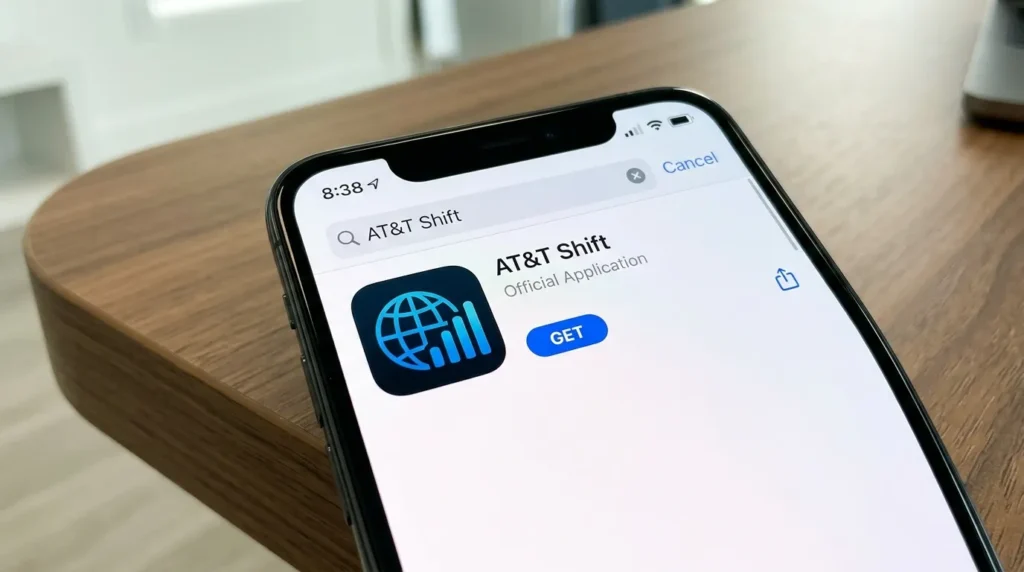
Getting the ATT Shift app on your Android device requires going through official channels. Here’s the correct process.
Download from the Google Play Store
The AT&T Shift app is available through the Google Play Store for eligible AT&T employees. Search for “ATT Shift” in the Play Store search bar. Verify that the app is published by AT&T Inc. or the official AT&T developer account before downloading.
Installation steps:
- Open the Google Play Store on your Android device
- Search “AT&T Shift” in the search bar
- Confirm the developer is the official AT&T corporate account
- Tap Install and wait for the download to complete
- Open the app after installation finishes
App Specifications
- App size: Approximately 30–50MB depending on the version
- Android requirement: Android 8.0 or higher recommended
- Internet requirement: Active internet connection required for all features
- Account requirement: Valid AT&T employee credentials (employee ID and password)
If You Can’t Find It on the Play Store
In some cases, ATT provides the app through internal distribution channels rather than the public Play Store particularly for enterprise-managed devices. If you can’t find the AT&T Shift app on the Play Store, ask your manager, HR representative, or IT department for the correct download link or installation method for your specific role and division.
Additionally, some AT&T employees access scheduling features through the ATT eLearning portal or other internal platforms rather than a dedicated standalone app. Your manager will know which tool your specific team uses.
Important Security Note
Never download what claims to be the ATT Shift app from any website, third-party APK site, or unofficial source. Any app claiming to be an AT&T employee tool from an unofficial source is either fake or potentially malicious. Enterprise apps like this should only come from the official Play Store listing or from your employer’s IT department directly.
Practical Tip: After installing the ATT Shift app, add it to your phone’s home screen immediately. You’ll open it regularly to check your schedule. Having it one tap away rather than buried in your app drawer saves small amounts of time that add up meaningfully over weeks and months.
How to Set Up and Log Into the AT&T Shift App
Getting logged into the ATT Shift app correctly from the start prevents the most common frustrations new users experience.
Your Login Credentials
The AT&T Shift app uses your AT&T employee credentials, typically the same username and password you use for other AT&T internal systems like the AT&T eLearning portal, your work email, or PeopleSoft HR system. These credentials are provided during your onboarding process.
If you haven’t received your employee credentials yet or have forgotten them, your manager or the AT&T IT Help Desk can assist with account setup and password resets.
First Login Process
- Open the AT&T Shift app after installation
- Enter your AT&T employee ID or username
- Enter your AT&T network password
- Complete any multi-factor authentication steps if prompted
- Accept any terms of use displayed on first login
- Wait for your schedule data to load this may take a moment on first access
Multi-Factor Authentication
Many AT&T internal systems require multi-factor authentication (MFA) for security. The Shift app may prompt you to verify your identity through a code sent to your work email or a registered phone number, or through an authenticator app. Follow the prompts and contact IT support if you encounter issues with MFA setup.
Connecting to the Right Location
If you work at multiple AT&T locations, confirm that the app shows the correct location’s schedule after login. Some configurations require you to select your primary location or update your location preference in the app’s profile or settings section.
Practical Tip: Write down your AT&T employee ID and keep it somewhere safe, not just on your phone. If you ever need to contact IT support or log into AT&T systems from a different device, having your employee ID readily available speeds up the process significantly.
Using the ATT Shift App Day-to-Day Features
Once you’re logged in and set up, the ATT Shift app becomes part of your regular work routine. Here’s how to use its core features most effectively.
Checking Your Schedule
Your schedule appears on the home screen after login. Most versions show a weekly calendar view with your shifts clearly marked. Tap any shift for detailed information location, start and end time, role assignment, and any special notes from your manager.
Look for a navigation option to advance to future weeks. Planning ahead by checking two or three weeks of upcoming shifts helps you manage personal appointments, social commitments, and any additional work opportunities more effectively.
Requesting a Shift Swap
To request a shift swap with a colleague:
- Tap the shift you want to swap
- Select “Request Swap” or “Find Coverage”
- Choose the colleague you want to swap with (from your team list)
- Select the shift you’re offering in exchange
- Add a note if needed and submit the request
Your colleague receives a notification and can accept or decline. Once both parties agree, the swap typically requires manager approval before it’s confirmed in the official schedule.
Submitting a Time-Off Request
Navigate to the time-off section of the app usually accessible from the main menu or calendar view. Select your requested dates, choose the leave type from the available options, add any relevant notes, and submit. You’ll receive a notification when your manager responds to the request.
Viewing Pay Period and Hours
Some versions of the AT&T Shift app display scheduled hours for the current pay period, helping you track your hours against any weekly or pay-period targets. This is particularly useful for part-time employees monitoring their hours relative to their position requirements.
Practical Tip: Use the AT&T Shift app’s schedule view to plan personal appointments at least two weeks in advance. Checking your upcoming schedule proactively rather than reactively reduces last-minute conflicts between work commitments and personal obligations significantly.
Common ATT Shift App Problems and How to Fix Them
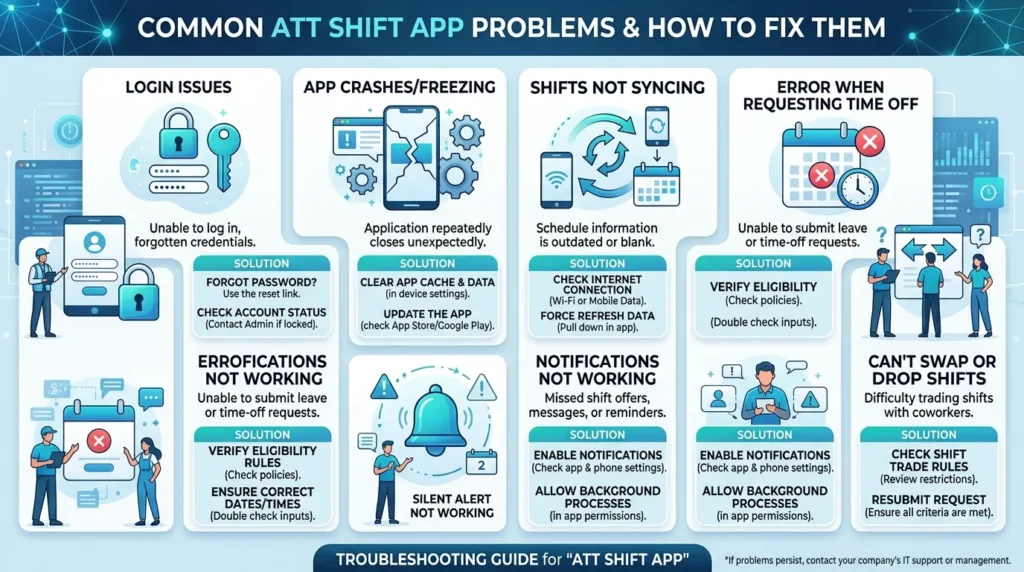
Even well-designed enterprise apps have issues from time to time. Here are the most common ATT Shift app problems and their solutions.
Login Errors
Problem: Can’t log in with your credentials. Solution: First, confirm you’re using your AT&T network password not your personal email password. If you’ve recently changed your AT&T password, update it in the app as well. If problems persist, contact the AT&T IT Help Desk for a password reset or account unlock.
App Not Showing Your Schedule
Problem: You log in successfully but your schedule doesn’t appear. Solution: Check your internet connection first the app requires active connectivity to load schedule data. Then confirm with your manager that your schedule has been entered into the system. New employees sometimes experience delays between hiring and schedule data appearing in the app.
Shift Swap Requests Not Going Through
Problem: You submitted a swap request but your colleague isn’t receiving it. Solution: Confirm that your colleague also has the app installed and notifications enabled. Additionally, verify that both of you are in the same scheduling group in the system. Some swap requests only work between employees in the same team or location grouping.
App Crashes or Won’t Open
Problem: The app closes immediately after opening or freezes. Solution: First, force-close the app and reopen it. If that doesn’t work, clear the app’s cache through Settings → Apps → AT&T Shift → Storage → Clear Cache. If problems continue, uninstall and reinstall the app from the Play Store. For persistent technical issues, contact AT&T IT support.
Notification Problems
Problem: Not receiving push notifications for schedule changes. Solution: Go to your Android phone’s Settings → Apps → AT&T Shift → Notifications and confirm all notification types are enabled. Also check that battery optimization isn’t restricting the app’s background activity; some Android devices aggressively restrict background processes for battery saving.
Practical Tip: Before contacting IT support for app issues, always try clearing the cache and reinstalling first. These two steps resolve the majority of common app problems and take less than five minutes saving you wait time for IT support responses.
AT&T Shift App vs Similar Workforce Scheduling Apps Comparison
| App | Who It’s For | Schedule Viewing | Shift Swaps | Time-Off Requests | Available Publicly | Platform |
| AT&T Shift App | AT&T employees only | ✅ Yes | ✅ Yes | ✅ Yes | ❌ Employee only | Android, iOS |
| When I Work | Any business | ✅ Yes | ✅ Yes | ✅ Yes | ✅ Yes | Android, iOS, Web |
| Deputy | Any business | ✅ Yes | ✅ Yes | ✅ Yes | ✅ Yes | Android, iOS, Web |
| Homebase | Small businesses | ✅ Yes | ✅ Yes | ✅ Yes | ✅ Yes | Android, iOS, Web |
| Kronos (UKG) | Enterprise only | ✅ Yes | ✅ Yes | ✅ Yes | ❌ Enterprise only | Android, iOS, Web |
Frequently Asked Questions
What is the ATT Shift app used for?
The ATT Shift app is an employee scheduling tool used by AT&T staff primarily retail store employees, call center workers, and other shift-based staff to view their work schedules, request shift swaps, submit time-off requests, and receive notifications about schedule changes. It connects to AT&T’s internal workforce management systems and requires valid AT&T employee credentials to access.
Can anyone download the ATT Shift app?
The app can be downloaded from the Google Play Store by anyone, but only ATT employees can log in. Without valid AT&T employee credentials, an employee ID and network password the app has no functionality. It’s an internal enterprise tool, not a consumer-facing application. If you’re not an AT&T employee, downloading it serves no purpose.
What should I do if I can’t log into the AT&T Shift app?
First, confirm you’re using your AT&T network credentials rather than a personal account password. If you’ve forgotten your password or your account is locked, contact the AT&T IT Help Desk your manager can provide the correct contact number or support portal link. New employees sometimes need to wait 24–48 hours after onboarding before their credentials activate across all systems including the Shift app.
Is the AT&T Shift app available on both Android and iPhone?
Yes, the AT&T Shift app is available for both Android (through the Google Play Store) and iPhone (through the Apple App Store). The functionality is equivalent across both platforms. Your login credentials work on either device, and you can use the app on multiple devices simultaneously if needed.
What happens if a shift swap request gets rejected?
If your shift swap request is declined either by your colleague or by management you’ll receive a notification through the app. Your original shift remains unchanged. If you still need coverage for that shift, you’ll need to submit a new request to a different colleague, speak directly with your manager about alternatives, or if eligible submit a time-off request for that date instead.
Conclusion
The ATT Shift app is a practical, time-saving tool that puts your work schedule directly in your pocket available anytime, from anywhere, without requiring a trip to your store’s back office or a call to your manager. For AT&T employees working in shift-based roles, it genuinely improves the day-to-day experience of managing your work schedule.
To recap the three key takeaways: download the app from the official Google Play Store using your AT&T employee credentials from day one; enable push notifications immediately after setup so you never miss a schedule change; and use the shift swap and time-off features proactively rather than waiting until last minute they work best when submitted with adequate notice.
Ask your manager about the AT&T Shift app during your next shift if you haven’t set it up yet. The setup takes under ten minutes and immediately improves how you manage your work schedule going forward.
Here’s a question for you: do you currently use the AT&T Shift app, and if so, which feature do you find most valuable in your day-to-day work? Share your experience in the comments below.
Disclaimer
This article is written for informational and educational purposes only. The AT&T Shift app is an internal enterprise application developed for AT&T employees and is not a publicly available consumer product. Information about the app’s features and availability is based on publicly available information and may not reflect the most current version of the application. AT&T may update, modify, or discontinue the AT&T Shift app at any time. Always download the AT&T Shift app exclusively from the official Google Play Store or through your employer’s official IT distribution channels. Never download AT&T employee apps from third-party websites or unofficial APK sources. For login issues or technical support, contact AT&T’s internal IT Help Desk through official channels provided by your employer. The author is not affiliated with AT&T Inc. and accepts no responsibility for issues arising from app use.