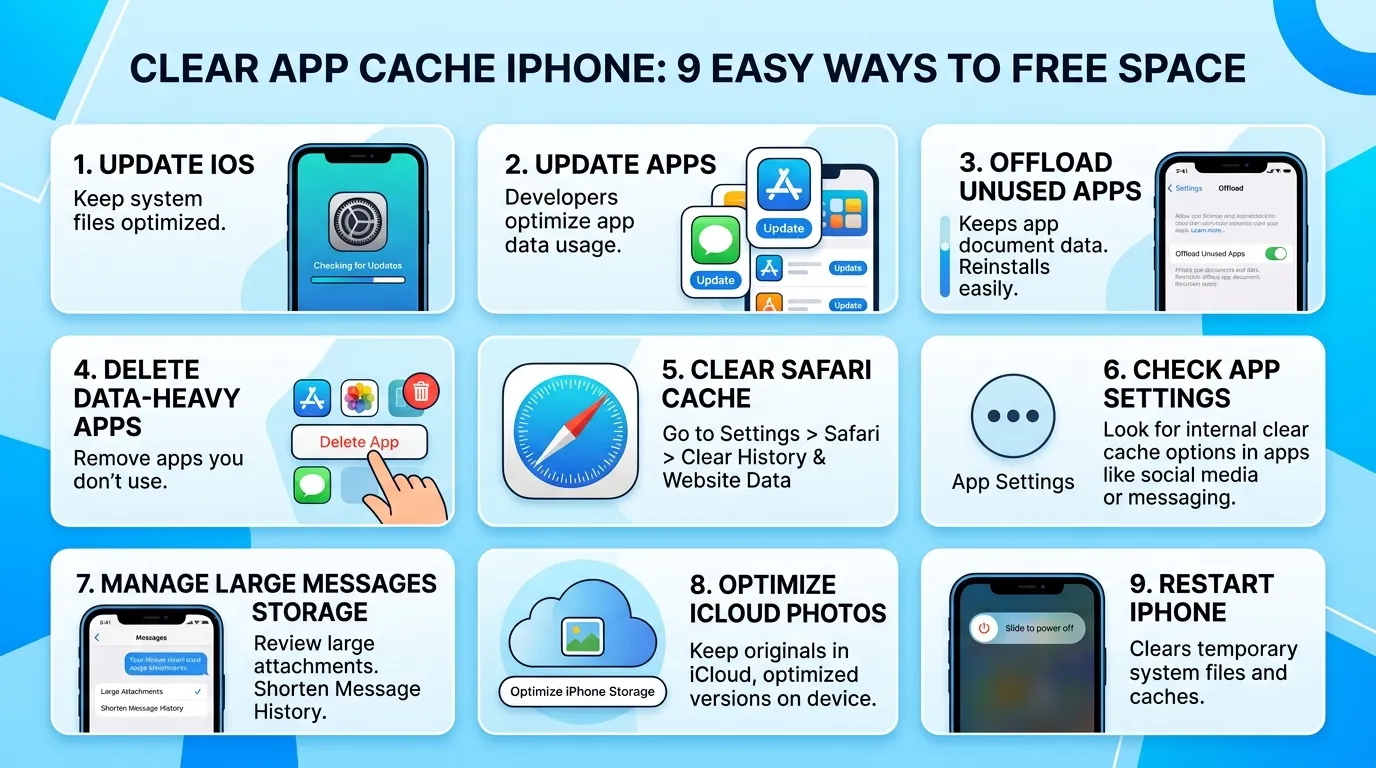
Is your iPhone storage almost full, even after you deleted old photos? You may want to clear app cache iPhone data next.
Apps save temporary files to load pictures, videos, and pages faster. However, those files can grow over time. A large cache may use valuable space or make one app behave badly.
Here is the catch. Your iPhone does not have one button that clears every app cache. Safari offers direct controls. Some apps include a cleanup option. Other apps may need offloading or deletion.
This guide explains the safest choices in a clear order. First, you will find the apps using the most space. Then, you will remove unwanted data without deleting important files by mistake.
You will also learn which popular “fixes” do not clear stored cache. Therefore, you can solve the real problem without wasting time.
What Does Clear App Cache iPhone Mean?
The phrase clear app cache iPhone means removing temporary files saved by apps or websites. These may include thumbnails, scripts, images, and page elements.
A cache helps apps open content faster. Therefore, you should not treat every cached file as junk.
Problems appear when an app stores too much temporary data. For example, social apps may keep many viewed images.
Clearing that data may help when:
- An app uses far more space than expected
- Pages show old or broken content
- An app freezes or closes often
- Safari websites load incorrectly
- You need space before an update
- Downloads or thumbnails will not refresh
However, cleanup may sign you out or remove offline downloads. Therefore, read each warning before you confirm.
Cache, App Data, and Documents Are Different
Cache means temporary files an app can create again. App data may include settings and databases. Meanwhile, documents include projects or downloads.
Deleting an app can remove local documents too. Therefore, back up anything important first.
Pro Tip: Check whether your work syncs with iCloud or another account before deleting an app. A login does not always guarantee a backup.
How to Clear App Cache iPhone in 9 Safe Steps
When people search for a clear app cache on their iPhone, they often expect one quick switch. However, Apple provides several targeted options instead.
Start with the least destructive method. Then move to stronger steps only when the problem remains.
1. Check Which Apps Use the Most Storage
Open Settings, tap General, and choose iPhone Storage. Your phone will show recommendations and a list of apps.
Tap an app to review its size and stored data. This prevents random cleanup because a tiny app will not free much space.
2. Use an In-App Cache Tool
Some third-party apps include a clear cache option. Check areas such as Settings, Storage, Data Usage, Downloads, or Privacy.
The button may say Clear Cache or Free Up Space. However, some tools also remove downloads or drafts. Read the warning first.
This is often the safest clear app cache iPhone method because the app controls its own files.
3. Clear Safari History, Cache, and Cookies
Go to Settings, tap Apps, and choose Safari. Then tap Clear History and Website Data.
Choose a timeframe when offered, then confirm. This clears history and website data, so some websites may sign you out.
4. Clear Safari Data but Keep History
Open Settings, tap Apps, and select Safari. Next, tap Advanced, followed by Website Data.
Choose Remove All Website Data, or remove selected sites. This clear app cache iPhone option keeps history but may still sign you out.
5. Remove Offline Downloads
Downloaded files often use more space than cache. Therefore, check the app’s download section first.
Streaming, podcast, and map apps may store large offline files. Also, check the Files app for saved documents.
6. Offload an Unused App
Offloading removes the installed app but keeps its documents and data. Therefore, it can free space without erasing saved content.
Open Settings, tap General, and choose iPhone Storage. Select an app, then tap Offload App.
The icon stays with a cloud symbol, so you can reinstall it later. However, offloading keeps documents and data.
7. Delete and Reinstall the App
Deleting and reinstalling offers a stronger clear app cache iPhone reset. It often removes local cache and other stored app data.
First, confirm that important information syncs online. Also, make sure you know your login details.
Press and hold the icon. Tap Remove App, choose Delete App, and confirm. Then reinstall it from the App Store.
Unsynced game progress, notes, or projects may disappear.
8. Close and Reopen a Problem App
Closing an app does not clear its stored cache. However, it can fix a frozen screen or temporary loading issue.
Open the app switcher and swipe the problem app upward. Then reopen it. Do not close every app daily.
9. Restart and Update Your iPhone
A restart does not erase app cache. Still, it can refresh system processes and fix temporary bugs.
Also, update the app and iOS because updates often fix crashes and storage issues.
Use this order:
- Update the app
- Close and reopen it
- Restart your iPhone
- Check available storage
- Try a stronger cleanup method
Clear App Cache iPhone Methods Compared
Not every clear app cache iPhone method gives the same result. Therefore, compare your options before choosing one.
| Method | What It Removes | Keep App Documents? | Main Risk |
| In-app cache tool | Selected temporary files | Usually | Downloads may disappear |
| Clear Safari data | History, cookies, and cache | Not applicable | Websites may sign you out |
| Remove website data | Cookies and site storage | Not applicable | Site settings may reset |
| Delete downloads | Chosen offline files | Yes | Files become unavailable offline |
| Offload app | Installed app file | Yes | Some stored data remains |
| Delete and reinstall | App and local data | Usually no | Unsynced files may be lost |
| Close or restart | No stored cache | Yes | May offer only a temporary fix |
In my experience, checking downloads gives the fastest win. However, reinstall a broken app only after confirming your data is safe.
Why Your iPhone Storage May Still Look Full
You may clear app cache iPhone data and see little change. Several reasons can explain that result.
First, storage figures may take time to update. Restart your phone, then check iPhone Storage again.
Also, photos, messages, downloads, or System Data may use most of the space.
Try these checks:
- Delete large message attachments
- Remove old video downloads
- Empty the Recently Deleted album
- Review files saved on the device
- Remove unused voice recordings
- Delete offline maps
- Follow Apple’s storage recommendations
Also, iCloud storage and iPhone storage are different. Buying more iCloud space does not increase your phone’s physical storage.
Common Clear App Cache iPhone Mistakes
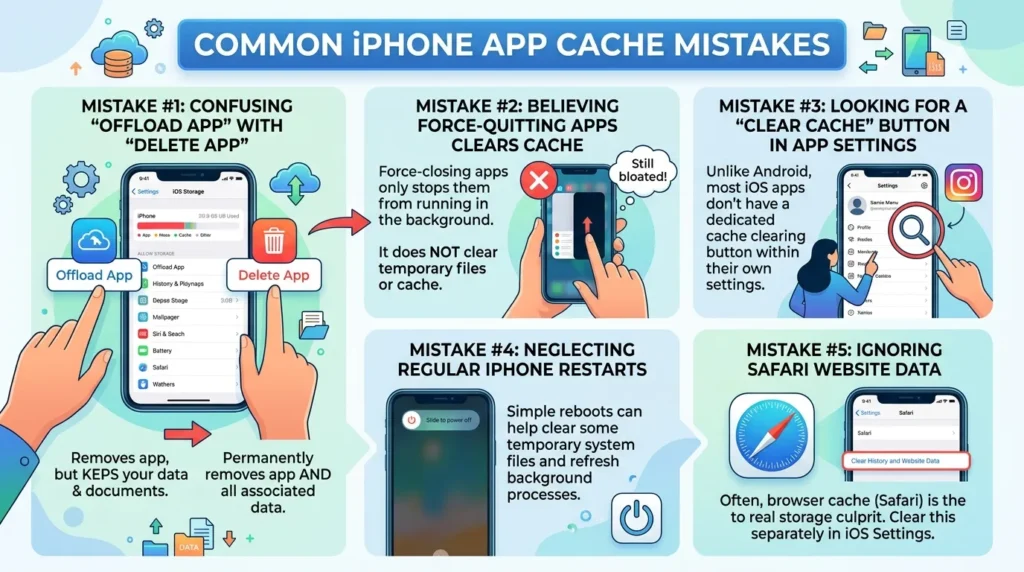
A careless clear app cache iPhone attempt can remove useful data without fixing the problem. Therefore, avoid these mistakes.
Deleting Apps Before Checking Backups
Do not assume every app saves its data online. First, confirm syncing inside the app.
A game may need a linked account, while a drawing app may keep projects locally.
Using Unknown Cleaning Apps
Be cautious with apps that promise to wipe every iPhone cache. iOS limits how one app can access another app’s private files.
A cleaner may find large videos. However, it cannot secretly clear every third-party cache.
Clearing Safari Without Expecting Sign-Outs
Cookies often keep you signed in. Therefore, clearing them may require you to enter passwords again.
Save important passwords before cleanup.
Force-Closing Every App
Closing every app does not remove stored cache. Use force-close only when an app becomes unresponsive.
Cleaning Too Often
Cache helps apps load faster. Therefore, daily cleanup may slow the next launch.
Use the clear app cache iPhone methods only when storage is tight or an app has a clear problem.
When Should You Clear an App Cache?
You do not need to clear app cache iPhone files on a schedule. iOS manages many temporary files automatically.
However, cleanup makes sense when:
- An app shows outdated content
- Your storage becomes very low
- One app uses unusual space
- A website keeps loading incorrectly
- An app crashes after an update
- Offline files are no longer useful
First, reopen the app and check for updates. Then review storage. Reinstall only when safer methods fail.
Clear App Cache iPhone FAQ
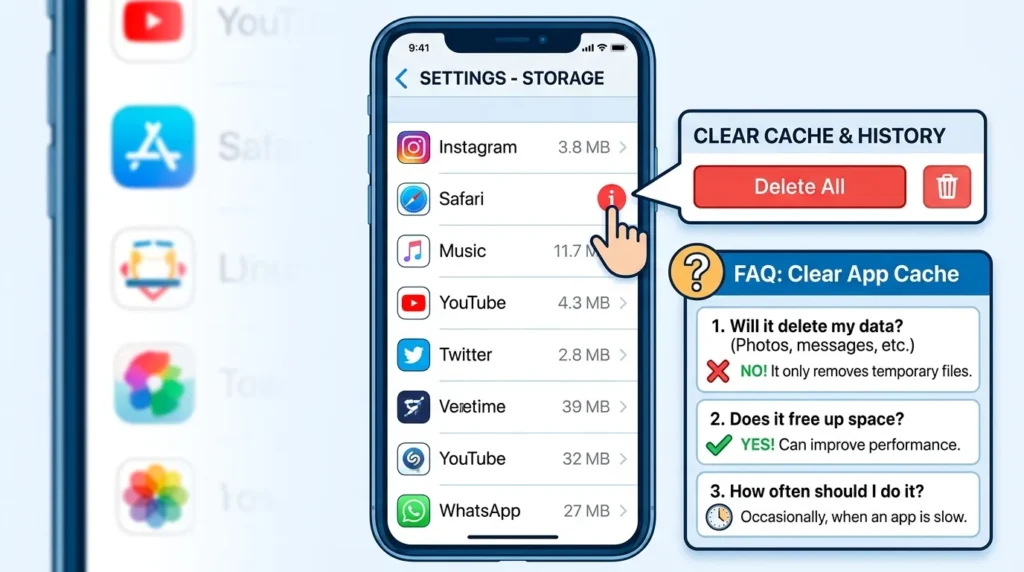
Is There One Button to Clear Every App Cache?
No. iPhone has no system-wide button for every third-party cache. Safari has direct controls, while other apps use different methods.
Does Offloading an App Clear Its Cache?
Offloading removes the app but keeps documents and data. Therefore, it frees space without guaranteeing a full cache reset.
Will Clearing Cache Delete My Photos?
Safari cleanup will not delete Photos content. However, deleting another app may remove images stored only inside it.
How Do I Clear Cache for One App?
Look for an in-app storage tool, then remove unwanted downloads. For a stronger clear app cache iPhone reset, back up and reinstall.
Does Clearing Safari Cache Remove Passwords?
Safari cleanup can sign you out. However, passwords saved in Apple’s Passwords system should remain. Check key logins first.
Why Is an App Still Large After Cleanup?
The app may store downloads or projects as documents and data. Remove unwanted content, or back up and reinstall.
Will Clearing Cache Make My iPhone Faster?
It may help an app with broken files. However, clear app cache iPhone steps will not fix every slow phone. Check updates and storage too.
How Often Should I Clear App Cache?
Skip a weekly routine. Clear data when an app has a problem or storage becomes tight.
Free Space Without Losing Important Data
The safest way to clear app cache iPhone files starts with a storage check. First, find the apps using the most space. Then remove downloads or use an in-app tool.
For Safari, clear history and website data through Settings. However, expect some websites to sign you out.
Offloading frees the installed app size while keeping documents. Meanwhile, deleting and reinstalling offers a stronger reset but carries more risk.
Take the least destructive step first. Also, back up important projects and confirm your passwords. This approach can free space without creating a new problem.