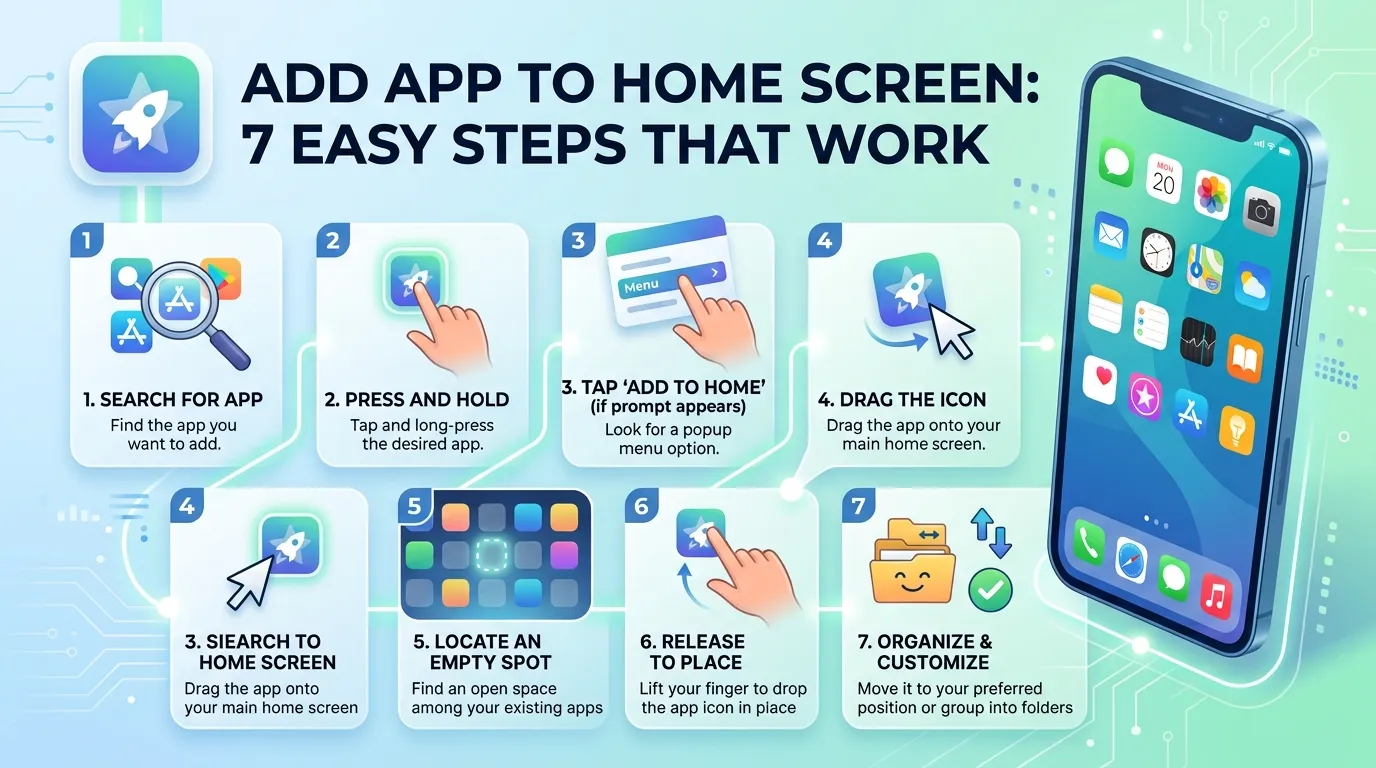
Ever opened your phone and wondered where an app went? You know it’s installed, yet its icon has vanished. The good news is that you can usually add app to home screen in less than a minute.
The right steps depend on your device and icon type. You may need to restore an app, move an icon, or save a website. However, each task uses a different menu.
This guide covers iPhone, iPad, Android, and web apps. Keep your phone nearby and follow the matching section.
What Does “Add App to Home Screen” Mean?
When you add app to home screen, you place an icon on your phone’s main screen. As a result, that icon gives you quick access with one tap. However, the icon can represent different things.
First, it may open a normal mobile app. For example, you downloaded it from the App Store or Google Play. The app may still sit in your App Library or app drawer.
Second, the icon may open a website shortcut. Some websites also work as progressive web apps, or PWAs. Therefore, these can feel like regular apps.
Finally, you may only need to move an existing icon. In that case, you aren’t installing anything new.
| What you want | Where it comes from | What it opens |
| Downloaded app | App Store or Google Play | The installed app |
| Missing app icon | App Library or app drawer | An app already on your phone |
| Website shortcut | Safari or Chrome | A saved web page |
| Web app or PWA | A supported website | An app-like web window |
Therefore, check what you want to add before you start. As a result, this step can save time.
How to Add App to Home Screen on iPhone
An iPhone may send new downloads to the App Library. So, the app can remain installed even when its icon isn’t visible.
Move an app from the App Library
Follow these steps to add app to home screen from the App Library:
- Swipe left past your last home screen page.
- Open the App Library.
- Tap the search field.
- Type the app’s name.
- Touch and hold the app icon.
- Keep holding as you move it left.
- Drop it on your chosen page.
- Tap Done when needed.
You can also keep holding until the icons move. Then, drag the app into place.
Make new apps appear automatically
Do you want future downloads on the home screen? Change this setting:
- Open Settings.
- Tap Home Screen & App Library.
- Find the setting for new downloads.
- Choose Add to Home Screen.
Afterward, new apps should appear on the home screen. However, this setting won’t move older apps.
Pro Tip: Put your most-used apps in the Dock. Also, they’ll stay visible between home screen pages.
Check hidden pages and apps
Sometimes, the app sits on a hidden page. Touch and hold an empty area until the icons move. Then, tap Edit and Edit Pages. Then, make sure the page has a check mark.
Newer iPhones can also hide apps inside a Hidden folder. Next, open the App Library and scroll down. You’ll need Face ID, Touch ID, or a passcode to open it.
How to Add App to Home Screen on Android
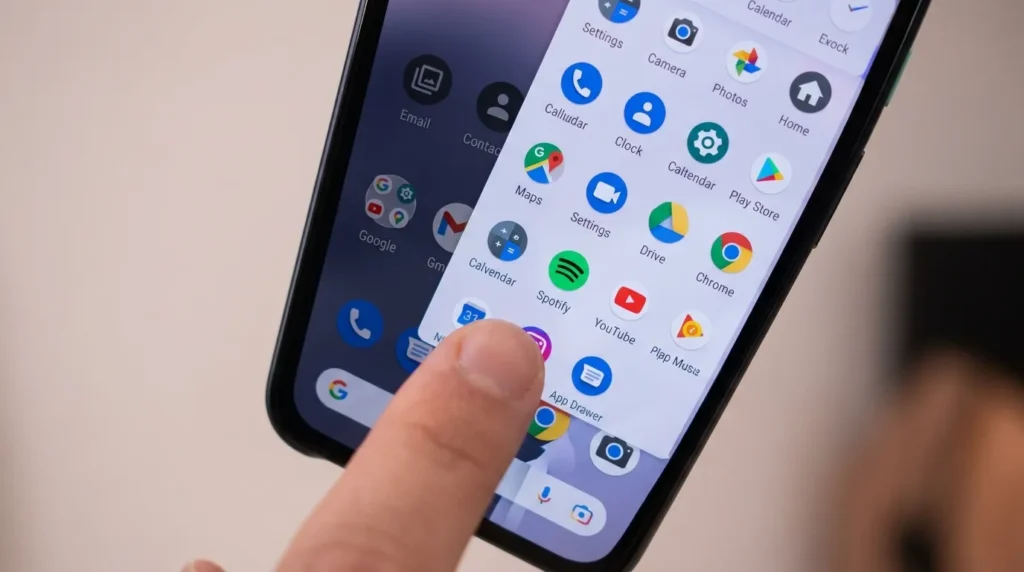
Android phones usually keep installed apps in the app drawer. However, the home screen shows only your chosen shortcuts. As a result, removing an icon often doesn’t uninstall the app.
Still, menu names vary by brand. However, this method works on most Android phones.
Drag an app from the app drawer
Use these steps to add app to home screen on Android:
- Swipe up from the bottom.
- Find the app in the app drawer.
- Touch and hold its icon.
- Drag it toward the top or side.
- Wait for the home screen to appear.
- Move it to an empty space.
- Lift your finger.
Did the app open instead? Instead, hold the icon longer before moving your finger.
Add an app to the favourites row
Also, the bottom row stays visible on most pages. Therefore, it’s ideal for apps you use every day.
First, remove an old icon if there’s no space. Next, open the app drawer. Then, hold your chosen app and drag it into the empty spot.
For example, this row works well for Phone, Messages, and Camera. Keeping it simple makes your phone easier to use.
Create another home screen page
Sometimes, a full page blocks a new icon. Touch and hold the app, then drag it to the far right edge. Keep holding until a blank page appears.
You can also create folders. For example, group banking apps together and travel apps in another folder.
How to Add a Website or Web App to Home Screen
A website shortcut helps when a service has no app. It can also save space. For example, you might save a school portal or work dashboard.
Save a website on iPhone with Safari
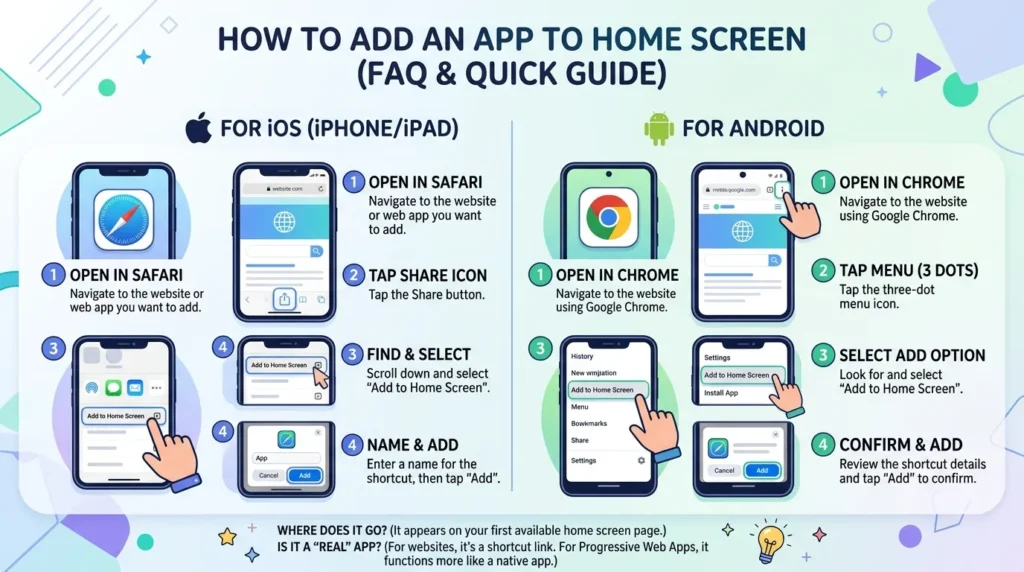
Safari provides the standard method on iPhone:
- Open the website in Safari.
- Tap the Share button.
- Scroll down.
- Tap Add to Home Screen.
- Edit the name if needed.
- Turn on Open as Web App when shown.
- Tap Add.
Then, the icon will appear on your home screen. Also, a supported site may open without browser controls.
This method lets you add app to home screen even when the icon opens a website. However, each site offers a different experience.
Save a website on Android with Chrome
Chrome also makes website shortcuts easy:
- Open the website in Chrome.
- Tap the three-dot menu.
- Tap Add to home screen.
- Choose Create shortcut when shown.
- Edit the name.
- Tap Add.
- Confirm the placement.
Some sites show Install app instead. That usually means the site offers a PWA. Therefore, it may open in its own window and support extra features.
Should you choose a shortcut or full app?
Choose the full app for offline tools, reliable notifications, or deeper phone features. Choose a shortcut for occasional visits or limited storage.
Useful Examples Before You Add App to Home Screen
Ever wondered why one method works for a friend but not for you? Their icon may come from a different source.
| Situation | Best method | Reason |
| Instagram is installed but missing | Move it from the app list | The app already exists |
| A restaurant has no app | Save its website | You get one-tap access |
| You use Gmail every hour | Put it in the bottom row | It stays easy to reach |
| A work portal supports installation | Install its PWA | It may open like an app |
| New iPhone apps keep disappearing | Change the download setting | Future apps appear automatically |
Suppose Search finds your weather app, but its icon isn’t visible. Move it from the App Library or app drawer.
For a school portal without an app, save a website shortcut instead.
Common Mistakes When You Add App to Home Screen
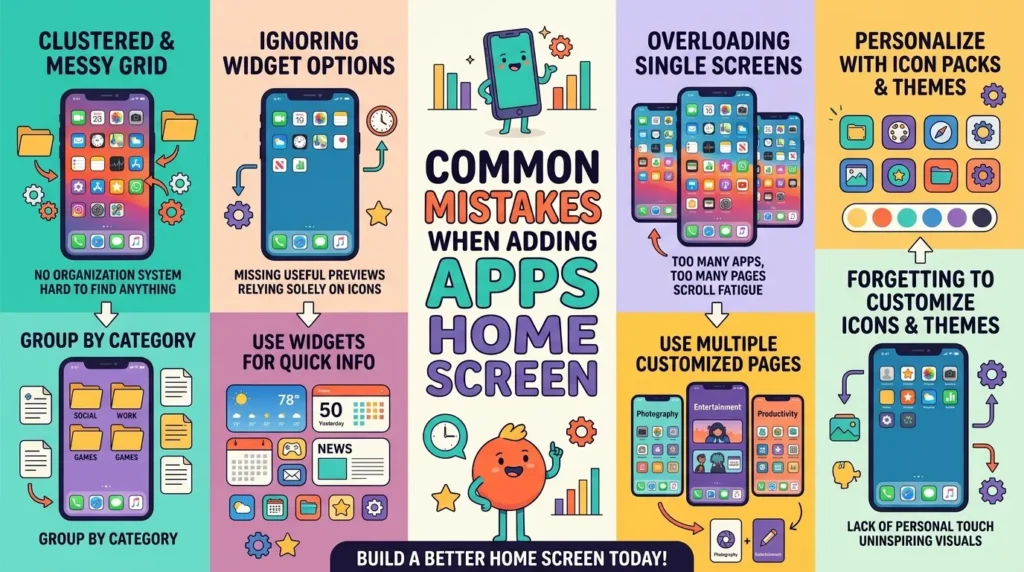
Most problems come from a small mix-up. Before changing many settings, check these common mistakes.
Reinstalling an app that’s still installed
Search first. Use the App Library on iPhone or app drawer on Android. Reinstalling wastes time and may affect saved data.
Confusing “Remove” with “Uninstall”
Removing an icon often leaves the app installed. Uninstalling deletes the app from your phone. Therefore, read each button before you tap it.
Using the wrong browser
On iPhone, Safari offers the normal website shortcut option. Other browsers may use different labels. So, try Safari when the menu is missing.
On Android, Chrome may show Create shortcut or Install app. Both create an icon, although they work differently.
Forgetting that the layout is locked
Some Android phones lock the home screen layout. Touch and hold an empty area, open Home settings, and turn off the layout lock.
Trying to use a full page
A full page may reject another icon. Move an old icon, create a folder, or use a new page. Then, try to add app to home screen again.
Saving an unsafe website
Only save sites you trust. Also, check the web address before entering passwords or payment details. A shortcut offers convenience, but it doesn’t prove a site is genuine.
Quick Fixes When the Option Is Missing
You followed the steps, but you still can’t add app to home screen. Try these fixes in order:
- Restart your phone.
- Update your phone software.
- Update your browser.
- Check whether the app is hidden.
- Unlock the home screen layout.
- Make one empty icon space.
- Try Safari on iPhone.
- Try Chrome on Android.
- Check parental controls.
- Check work or school restrictions.
A family organiser, employer, or school may block changes. Therefore, you may need the account owner or administrator.
If a shortcut opens the wrong page, delete it and create it again from the correct page.
Add App to Home Screen FAQ
How do I add app to home screen after removing it?
Open the App Library on iPhone or the app drawer on Android. Find the app and hold its icon. Then, drag it onto your home screen. Your account and app settings should remain available.
Why is my installed app not showing?
The app may be in the App Library, app drawer, a folder, or a hidden page. Search before you reinstall it.
Can I add app to home screen without downloading it?
You can save a website shortcut without installing a store app. Open it in Safari or Chrome, then choose the home screen option.
How do I add app to home screen on Samsung?
Swipe up to open the Apps screen. Hold the app, then drag it onto an empty home screen area. Menu names may vary by model and software version.
Why can’t I move an app icon on Android?
Your layout may be locked. Open Home settings and turn off the layout lock. Also, make sure the page has enough room.
Does removing a home screen icon delete the app?
Usually, it doesn’t. The app often remains in the App Library or app drawer. However, Delete App or Uninstall removes the app itself.
Can a website shortcut send notifications?
Some web apps can send notifications after you allow them. However, support depends on the site, browser, and phone software.
Is a website shortcut safe?
It’s safe when you trust the site and confirm its address. Still, avoid entering private details on suspicious pages.
Make Your Favourite Apps Easier to Reach
Once you know where the icon comes from, the fix feels simple. You can add app to home screen from an app library, app drawer, or trusted website. You can also place daily apps in the bottom row.
First, find the app before downloading it again. Next, choose the method that matches your phone. Finally, place the icon where your thumb can reach it.
Take one minute to tidy your screen now. Keep daily tools close, move other apps into folders, and save only useful website shortcuts. Your phone will feel calmer and much easier to use.