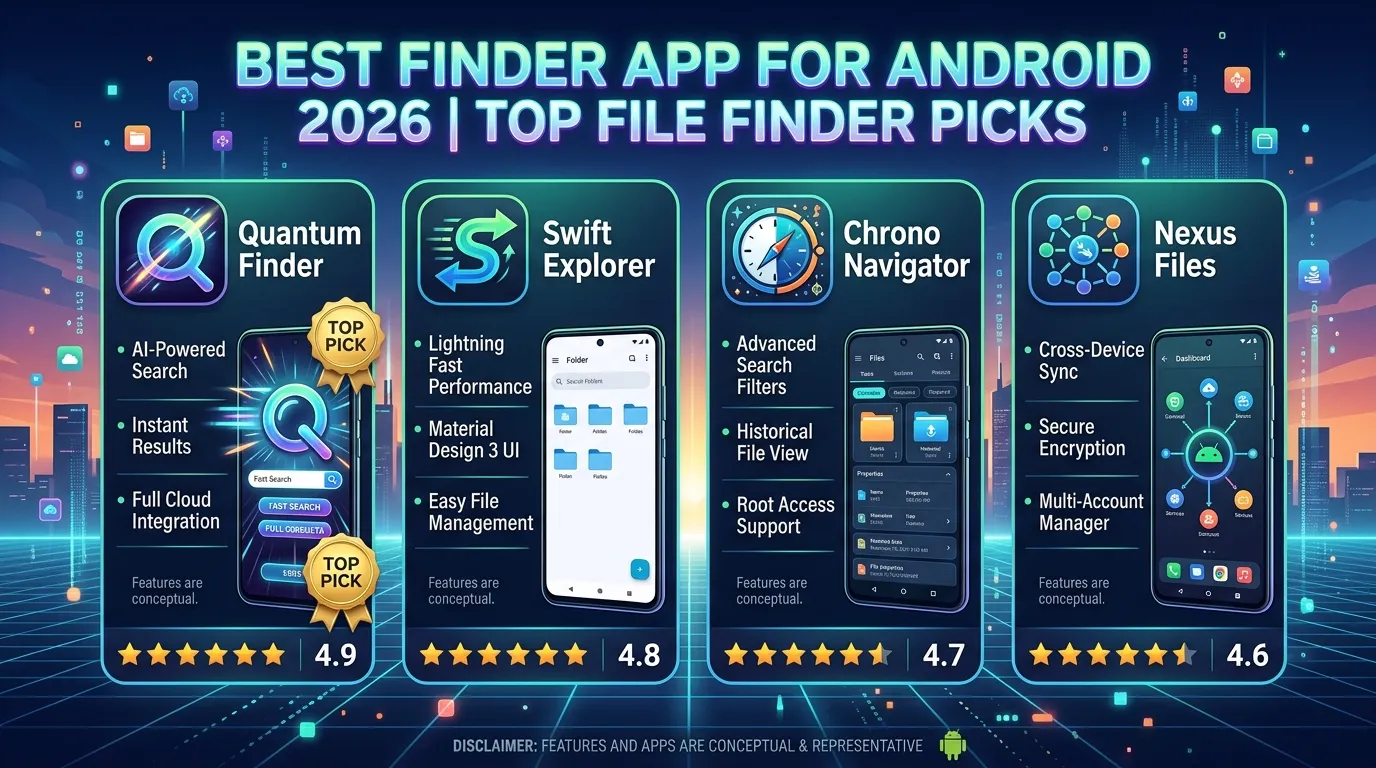
Have you ever spent ten minutes searching your phone for a photo you know you downloaded only to give up and download it again? Or walked around your house looking for your keys, wishing your phone could just tell you where they were? A good finder app solves both of these problems, and in 2026 Android users have genuinely excellent options for both scenarios.
The term “finder app” covers several different types of tools. Some help you locate files, photos, and documents on your Android device. Others help you find physical objects like keys, bags, and wallets using Bluetooth trackers. A third category helps you locate a lost or stolen Android phone entirely.
In this guide, you’ll learn which finder apps actually work well in each of these categories, what features to look for before downloading, how to set them up correctly, and how they compare against each other. Whether you’re constantly losing files, misplacing belongings, or want peace of mind about your phone’s location, this article covers the right finder app for every situation.
Let’s get into it.
What Is a Finder App and What Can It Actually Do?
The phrase finder app is genuinely broad; it describes several different categories of tools that all share one purpose: helping you locate something you can’t find.
Understanding which type of finder app you actually need saves you from downloading the wrong tool and feeling disappointed when it doesn’t solve your problem.
The Three Main Types
File finder apps search your Android device’s internal storage and SD card for files, photos, documents, videos, and downloads. They organize content by type, date, size, and location making it easy to find that specific PDF from three months ago or a photo buried deep in your gallery.
Phone finder apps help you locate your Android phone when it’s lost, stolen, or simply misplaced somewhere in your home. These use GPS, Wi-Fi location, and Google’s Find My Device system to show your phone’s location on a map.
Item finder apps pair with small Bluetooth tracker devices like Tile or Samsung SmartTags attached to physical objects like keys, wallets, bags, or TV remotes. The app communicates with the tracker and shows you the object’s last known location.
Why Each Type Matters
Most people need at least one of these three types regularly. Files get buried in unexpected folders after downloads. Phones disappear between sofa cushions or get left at restaurants. Keys and wallets go missing at the worst possible moments.
In my experience, users who set up all three types of finder solutions, a file manager, Google’s Find My Device, and a Bluetooth tracker for their keys eliminate the vast majority of “I can’t find it” moments from their daily life entirely.
Practical Tip: Before downloading any finder app, decide which specific problem you’re trying to solve. File finder, phone finder, and item finder are distinct tools downloading a file finder when you need a phone locator wastes time and doesn’t help you at all.
Best File Finder Apps for Android in 2026
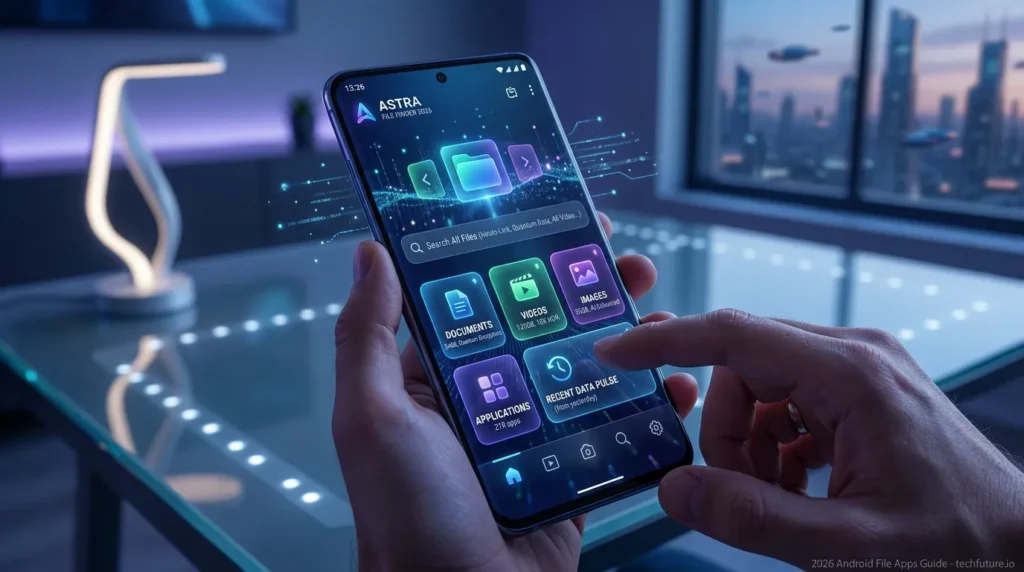
File finder apps help you locate documents, photos, videos, downloads, and other content stored on your Android device. Here are the best options available in 2026.
1. Files by Google Best Overall File Finder App
Files by Google is the most polished and trustworthy finder app for locating files on Android. Developed directly by Google, it organizes all content on your device by category images, videos, audio, documents, downloads, and apps making any file findable within seconds.
The app also includes a search function that finds files by name, type, or date across all storage locations simultaneously. Additionally, it identifies large files consuming storage and suggests content to clean up.
- App size: ~25MB
- Android requirement: Android 5.0+
- Available on: Google Play Store
- In-app purchases: ❌ None
- Developer: Google LLC
2. Total Commander Best Power User File Finder
Total Commander is a dual-panel file manager with powerful search capabilities. You can search by filename, content, date range, and file size across all storage locations including SD cards and connected network drives. It’s more complex than Files by Google but significantly more capable for advanced users.
- App size: ~5MB**
- Android requirement: Android 2.1+
- In-app purchases: ❌ Fully free
- Best for: Advanced users who need deep file system access
3. Solid Explorer Best Premium File Finder
Solid Explorer combines a beautiful interface with powerful file finding capabilities. Its search function handles complex queries efficiently, and it supports cloud storage integration letting you find files across your local storage, Google Drive, and Dropbox simultaneously.
- App size: ~15MB**
- Android requirement: Android 5.0+
- In-app purchases: ✅ One-time purchase after trial
- Best for: Users who want a visually polished file finding experience
4. Astro File Manager Best Free File Finder
Astro File Manager delivers solid file finding capabilities completely free. Its search function locates files quickly across internal storage and SD cards, and it includes a task killer and app manager alongside the core file browser.
- App size: ~20MB**
- Android requirement: Android 4.1+
- In-app purchases: ❌ Free core features
- Best for: Users who want free file management without limitations
Practical Tip: In Files by Google, tap the search icon and type just the file extension you’re looking for. “.pdf” finds all PDFs, “.jpg” finds all JPEG photos. This is faster than browsing folders when you know the file type but not the exact name.
Best Phone Finder Apps for Android in 2026
Losing your Android phone is stressful. However, the right finder app makes recovering it significantly more likely. Here are the best options.
1. Google Find My Device Best Built-In Phone Finder
Google Find My Device is the most reliable phone locator available for Android. It comes built into the Android operating system and requires no separate installation on most devices. As long as your phone is on, connected to the internet, and linked to your Google account, you can locate it from any browser at google.com/android/find.
Features include:
- Real-time location on a map
- Play sound makes the phone ring at full volume even on silent
- Lock the phone remotely with a custom message
- Erase the phone remotely if recovery seems impossible
- Track location history of recent positions
- App size: Pre-installed on most Android devices (~5MB if downloaded separately)
- Android requirement: Android 6.0+
- Available on: Google Play Store
- Cost: Free
2. Life360 Best Family Phone Finder App
Life360 expands phone finding into a family safety platform. Members of a Life360 circle can see each other’s real-time locations, receive alerts when family members arrive or leave specific places, and check driving behavior. It’s particularly popular for parents wanting to know their children’s locations.
- App size: ~50MB**
- Android requirement: Android 5.0+
- Cost: Free tier available, premium plans from ~$7.99/month
- Best for: Families tracking multiple members’ locations
3. Prey Anti Theft Best Security-Focused Phone Finder
Prey Anti Theft goes beyond simple location finding. When activated, it takes photos using the phone’s camera, captures screenshots, locks the device, and sends all data to your Prey account giving you evidence of who has your phone alongside location data.
- App size: ~20MB**
- Android requirement: Android 5.0+
- Cost: Free tier (one device), paid plans for multiple devices
- Best for: Users who want evidence capture alongside location tracking
Practical Tip: Set up Google Find My Device before you ever need it. Go to google.com/android/find now and confirm your phone appears in the list. If it doesn’t, open your phone’s Settings → Google → Find My Device and enable it. Five minutes now saves enormous stress later.
Best Item Finder Apps Tracking Keys and Belongings
Item finder apps pair with small Bluetooth tracker devices to help you locate physical objects. Here are the best options for Android in 2026.
1. Tile Best Overall Item Finder App
Tile is the most established Bluetooth tracker ecosystem on Android. tile trackers attach to your keys, bag, wallet, or any valuable item. The Tile finder app shows the tracker’s last known location on a map and lets you ring the tracker when you’re nearby.
The “Community Find” feature is particularly valuable if your tagged item is out of Bluetooth range, other Tile users’ phones anonymously detect it and update its location in your app automatically.
- App size: ~40MB**
- Android requirement: Android 7.0+
- Tracker cost: $25–$35 per Tile tracker
- App cost: Free (Premium subscription available for extended features)
2. Samsung SmartThings Find Best for Samsung Users
Samsung SmartThings Find works exclusively with Samsung Galaxy devices and Samsung tracker tags (SmartTags). It integrates deeply with Samsung’s ecosystem, offering location tracking for Samsung phones, tablets, earbuds, and SmartTag trackers through a single unified interface.
- App size: ~30MB**
- Android requirement: Samsung Galaxy devices with Android 8.0+
- Cost: Free with Samsung Galaxy devices
- Best for: Samsung ecosystem users
3. Chipolo Best Budget Item Finder App
Chipolo offers affordable Bluetooth trackers with a solid companion app. The Chipolo finder app works similarly to Tile but with a focus on simplicity and a slightly lower tracker price point. Community finding works through other Chipolo users’ phones.
- App size: ~20MB**
- Android requirement: Android 6.0+
- Tracker cost: ~$20–$28 per Chipolo tracker
- App cost: Free
Practical Tip: Attach a Bluetooth tracker to your key ring, primary bag, and TV remote, the three things most people lose most frequently. The small upfront cost of three trackers eliminates the daily stress of searching for these items permanently.
What to Check Before Downloading Any Finder App
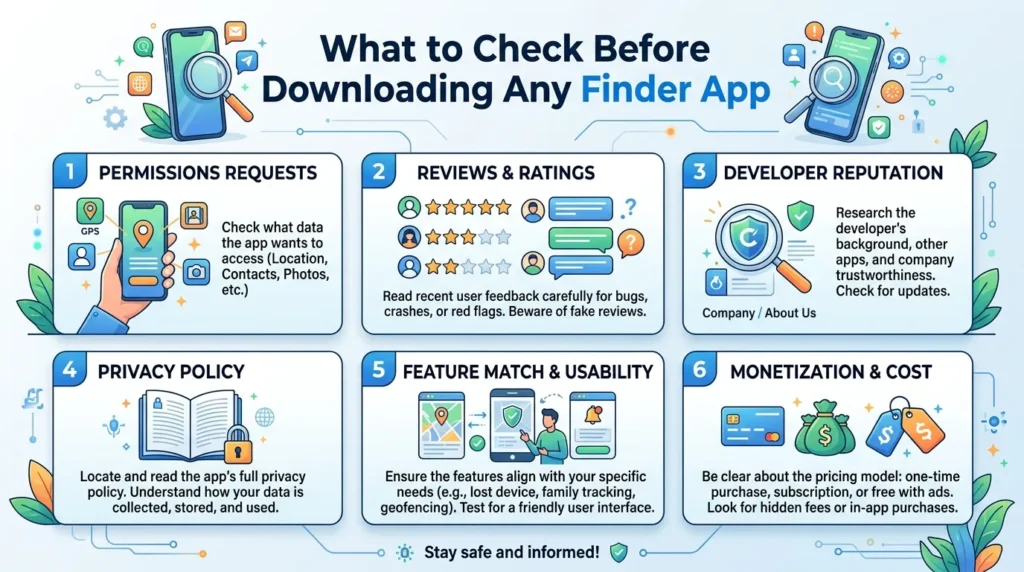
Not every finder app delivers what it promises. Before installing anything, verify these key factors.
Privacy Policy and Data Collection
Phone and item finder apps handle sensitive location data. Always read the privacy policy before downloading. Look for clear statements about what location data is collected, how long it’s stored, and whether it’s shared with third parties.
Google Find My Device stores minimal data and operates under Google’s well-documented privacy policy. Third-party apps require more scrutiny particularly those offering “free” services without a clear business model.
Permission Requests
A file finder app needs storage access nothing more. A phone finder app needs location access and network access. An item finder app needs Bluetooth and location access.
Any finder app requesting access to your contacts, camera, or microphone without clear justification deserves scrutiny. Review permissions carefully before confirming installation.
Developer Reputation and Update History
Check when the app was last updated. Security researchers regularly discover location-related vulnerabilities; an app that hasn’t been updated in over a year may have unpatched security issues. Active, regular updates signal a responsible developer.
Pre-download checklist:
- ✅ Clear, detailed privacy policy available
- ✅ Permissions match the app’s stated function
- ✅ Developer is identifiable and reputable
- ✅ Recent updates within the last six months
- ✅ Positive recent reviews specifically about accuracy
Practical Tip: For any finder app handling location data, go to Settings → Apps → [finder app ] → Permissions after installation and set location access to “Allow only while using the app” unless the app specifically requires background location for its core function.
How to Get the Best Results from a Finder App
Having the right finder app is one thing. Using it effectively is another. These habits maximize the value you get from each type.
For File Finder Apps
Organize your downloads folder regularly once a month, spend five minutes moving files from Downloads into appropriately named folders. This makes future searches faster and reduces the clutter that makes files hard to find.
Additionally, use consistent, descriptive names when saving files. “Invoice_March_2026.pdf” is infinitely easier to find than “document(3).pdf” especially when you’re searching months later.
For Phone Finder Apps
Test your phone finder setup before you need it. Open google.com/android/find on a computer and confirm your phone appears and shows an accurate location. Testing takes two minutes and confirms everything works before an emergency.
Keep your phone charged above 20% whenever possible. A dead phone can’t be located remotely regardless of which finder app you use.
For Item Finder Apps
Place trackers on items as soon as you receive them, don’t wait until you first lose something. Additionally, check your item finder app’s battery indicator for each tracker monthly. Most Tile and Chipolo trackers last about a year on a battery, but it varies with usage.
Enable the “leave behind” alerts in tracker apps when available. These notify you when you’re moving away from a tagged item, preventing you from leaving your bag at a restaurant rather than helping you find it afterward.
Practical Tip: Set a recurring calendar reminder every three months to test all your finder apps. Open each one, confirm locations are accurate, check tracker battery levels, and verify your phone appears correctly in Find My Device. This quarterly check prevents surprises when you actually need these tools.
Finder App Comparison Table
| App | Type | Free | Play Store | Android Version | Best For |
| Files by Google | File finder | ✅ Yes | ✅ Yes | 5.0+ | Finding files and cleaning storage |
| Google Find My Device | Phone finder | ✅ Yes | ✅ Yes | 6.0+ | Locating lost or stolen phones |
| Tile | Item finder | ✅ App free | ✅ Yes | 7.0+ | Finding keys, bags, and belongings |
| Life360 | Phone finder | ✅ Free tier | ✅ Yes | 5.0+ | Family location sharing |
| Total Commander | File finder | ✅ Yes | ✅ Yes | 2.1+ | Advanced file search and management |
Frequently Asked Questions

What is the best finder app for Android in 2026?
The best finder app depends on what you need to find. For files on your device, Files by Google is the most polished and trustworthy option. for a lost or stolen phone, Google Find My Device is the most reliable solution. For physical items like keys and wallets, Tile offers the most established ecosystem with community finding features.
Can a finder app locate my phone if it’s turned off?
No, a phone that’s completely powered off cannot be located by any finder app. Google Find My Device, Life360, and similar apps all require the phone to be powered on and connected to the internet. However, Google Find My Device shows the last known location before the phone was turned off, which is often helpful for retracing your steps.
Is it safe to use a finder app that tracks location?
Safety depends entirely on the app and developer. Google Find My Device, operated by Google, is safe and transparent about its data practices. Third-party location apps require more careful evaluation, always reading the privacy policy, checking what data they collect, and verifying they have a clear business model that doesn’t rely on selling location data.
Do item finder apps like Tile work without the internet?
Tile trackers communicate via Bluetooth, not the internet. When you’re within Bluetooth range (approximately 30–100 meters) of your tracker, the app connects directly without needing internet. For finding items out of Bluetooth range, the Community Find feature requires internet connectivity to report the tracker’s location when other Tile users’ phones detect it nearby.
Can a finder app help me recover a stolen phone?
Google Find My Device is specifically designed for this scenario. It can show your phone’s real-time location, lock it remotely, display a message with contact information for whoever finds it, and erase all data if recovery seems impossible. For the best recovery chance, file a police report with your phone’s IMEI number (found in Settings → About Phone) and share the Find My Device location with authorities.
Conclusion
A good finder app removes one of the most common daily frustrations not being able to find something you need. Whether that’s a buried PDF on your phone, your misplaced keys, or your lost Android device, the right tool makes finding it fast and stress-free.
To recap the three key takeaways: use Files by Google for locating files on your device; set up Google Find My Device right now before you ever need it; and invest in a Bluetooth tracker like Tile for the physical items you lose most often. Together, these three tools solve the vast majority of “I can’t find it” moments in daily life.
Download Files by Google from the Play Store today and take five minutes to set up Find My Device both are free and take minutes to configure.
Here’s a question for you: what’s the one thing you lose most often, and do you currently have any system for finding it? Share your experience in the comments below.